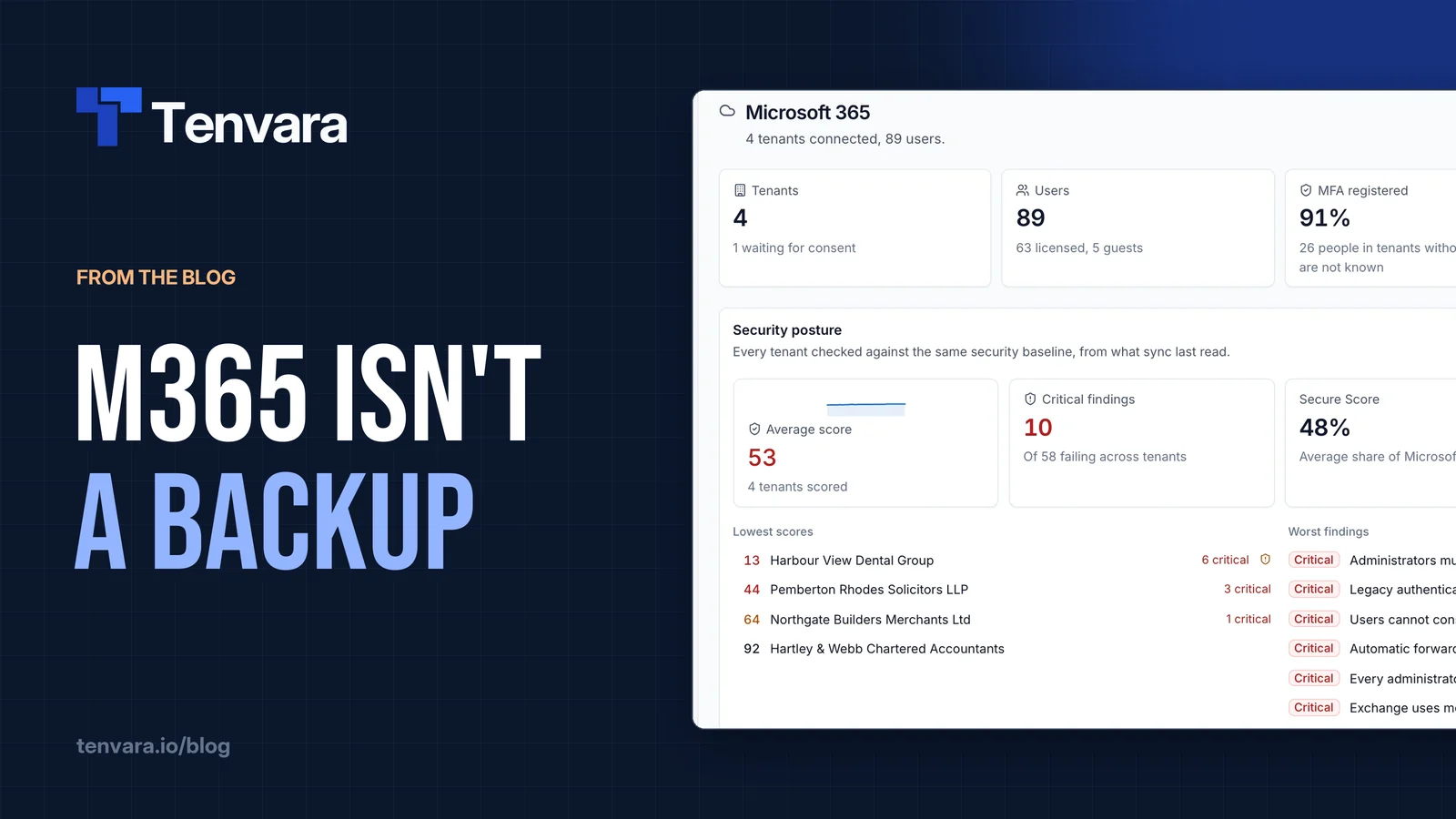
Ask a small business owner whether their email is backed up and most will say yes, because it's "in the cloud". Ask them what happens if someone deletes a folder of client files, a leaver's mailbox is removed, or ransomware encrypts a synced OneDrive, and the answer gets a lot less certain.
Microsoft 365 is a brilliant service. It is also a service, not a backup. The difference matters most on the day someone needs something back.
The shared responsibility model
Microsoft is clear that running Microsoft 365 is a shared job. Microsoft looks after the platform: the data centres, the hardware, the uptime, replication between sites, and the security of the service itself. If a disk fails in one of their data centres, you never hear about it.
The customer (and by extension, their MSP) looks after the data and who can touch it. That means accounts, permissions, what users delete or overwrite, what an attacker does with a stolen password, and how long the business needs to keep things. Microsoft's platform protects against Microsoft losing your data. It is not designed to protect you from your own users, your own admins, or someone who has signed in as them.
That split is reasonable. It just isn't how most customers picture it.
Retention is not backup
Microsoft 365 has plenty of features that feel like backup: recycle bins, recoverable items, version history, retention policies and holds. They're useful, and you should know how they work in your customers' tenants. But they are a different thing.
- They live in the same place as the data. If the tenant, the account or the admin role is compromised, the recovery options sit right next to what was lost.
- They're time-limited by default. Deleted and overwritten items are only recoverable for a limited period, and once that passes they're gone. The exact windows vary by workload, licence and configuration, and they change over time, so check the current documentation rather than trusting a number you remember.
- They're built for compliance, not restores. Retention policies and holds keep content so it can be found and preserved. Getting a user's folder structure back the way it was last Tuesday is a different job, and often a slow one.
- They follow the account. When a leaver's licence is removed or their account is deleted, their data follows the rules for deleted accounts, which may not match what the business expected.
A backup is an independent copy, kept somewhere else, for as long as you decide, that you can restore from on your terms. Retention is a safety net inside the service. You want both.
What to protect
When you scope Microsoft 365 backup for a customer, think in workloads rather than "email":
- Exchange mailboxes. User mail, calendars and contacts, and the shared and room mailboxes that nobody remembers until the accounts inbox goes missing.
- OneDrive. Where most users actually keep their work now, and a prime target for sync-based ransomware.
- SharePoint sites. Team sites and the sites behind Microsoft 365 groups, often holding the company's most important shared files.
- Teams. Channel conversations, and the files shared in channels, which live in the team's SharePoint site.
Then ask the questions that set the policy: how often should it run, how long should it be kept, who is allowed to restore, and when did we last prove a restore works?
A few habits worth building
- Protect new starters automatically. The most common gap is the person who joined last month and was never added to the backup.
- Keep leavers' data deliberately. Decide how long a leaver's mail and files are kept, and make sure backup covers them before the account is removed.
- Store backups away from the tenant. An independent copy only helps if it doesn't share the same failure.
- Test restores. Pick a mailbox folder or a OneDrive folder now and then and restore it somewhere harmless. A backup you've never restored from is a guess.
- Explain it to the customer. A short conversation about shared responsibility turns "why do we pay for backup?" into "glad we did".
How Tenvara backs up Microsoft 365
Tenvara backs up each connected tenant straight from Microsoft through Microsoft Graph, using one app registration you set up once and each customer's admin consent (or GDAP where you have it). The same connection is used by the rest of Tenvara's Microsoft 365 features, so the customer consents once. The setup is in Microsoft 365 backup.
What's covered:
- Users: mail, OneDrive, calendar and contacts.
- Shared and room mailboxes: mail, calendar and contacts.
- SharePoint sites and the sites behind Microsoft 365 groups: the site's files.
- Teams: channel messages and the team's site.
Each part has its own recovery points, so a problem with one doesn't stop the others. Turn on Protect new ones automatically and new users, sites and teams are protected as soon as they appear, so a new starter is covered from their first day.
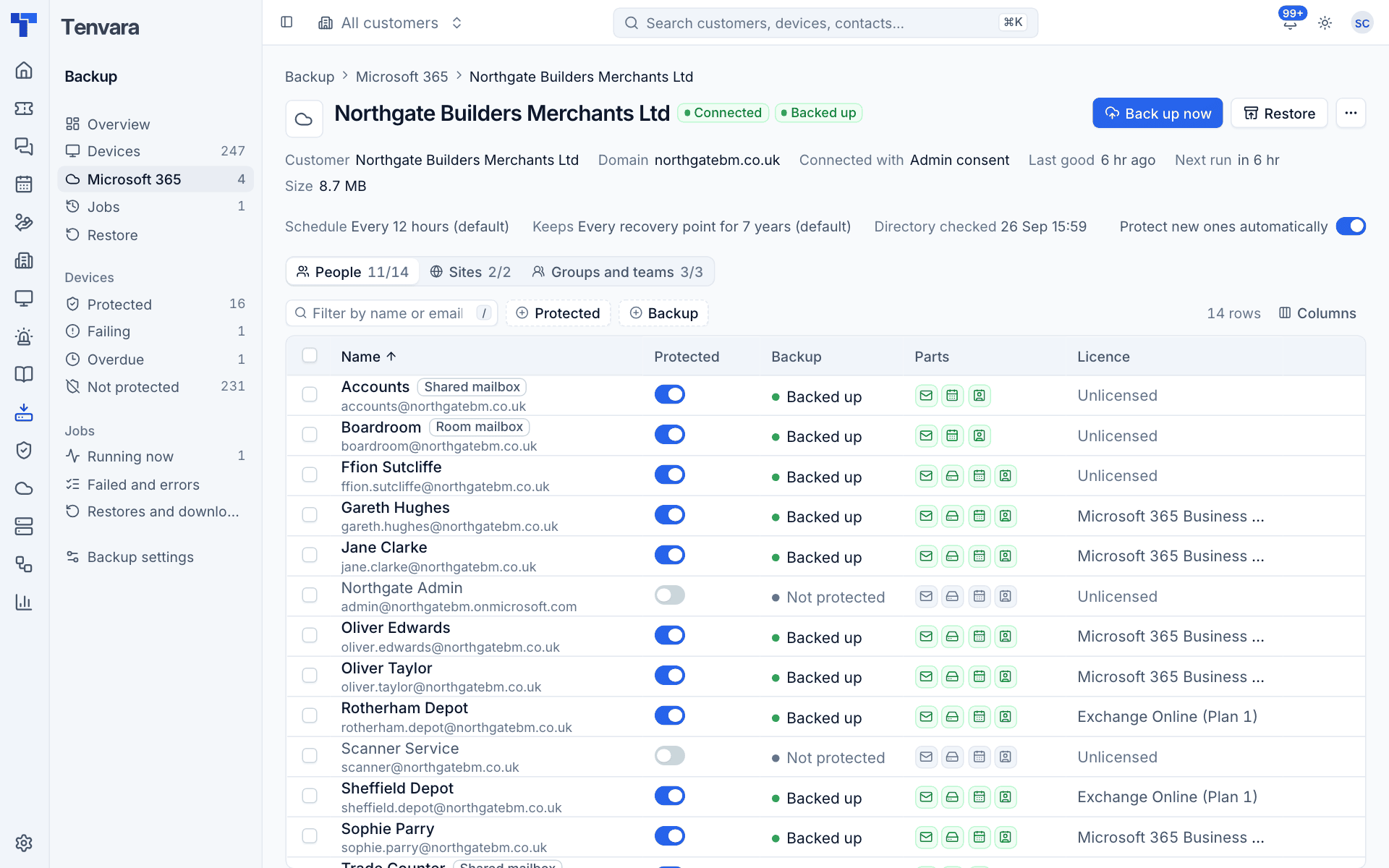
Runs fetch only what's changed since the last one, so frequent runs stay small. By default each tenant backs up every 12 hours and keeps every recovery point for seven years, and you can change the schedule and retention for all customers, one customer or one tenant. Backups land in encrypted, deduplicated storage, in a repository per customer, either on the backup server or in S3-compatible storage. See Schedules and retention.
Restores go through one guided flow. Pick the tenant, the user, site or team, and the part, then a recovery point from the calendar. You can browse and search mail folders, OneDrive and SharePoint files, calendar events, contacts and Teams channel messages. Mail and files can go back into the same mailbox, OneDrive or site, into another user in the same tenant, or out as a download (mail as a zip, PST or EML files). Restored mail, calendars and contacts go into dated "Restored" folders, so nothing current is overwritten.
Failed and overdue backups raise alerts that your rules can turn into tickets, and a tenant that refuses sign-in shows up straight away with a button to grant consent again. Device backup sits in the same area, with the same storage, schedules and restore flow, all through the one agent you already install.
The short version
Microsoft keeps Microsoft 365 running. Keeping your customers' data recoverable is on you, and retention settings alone won't do it. Scope the workloads, set a sensible schedule, protect new starters automatically, and prove a restore now and then. You can see how it all fits on the backup page.