ITSM for in-house IT teams
Service management that works the way IT does.
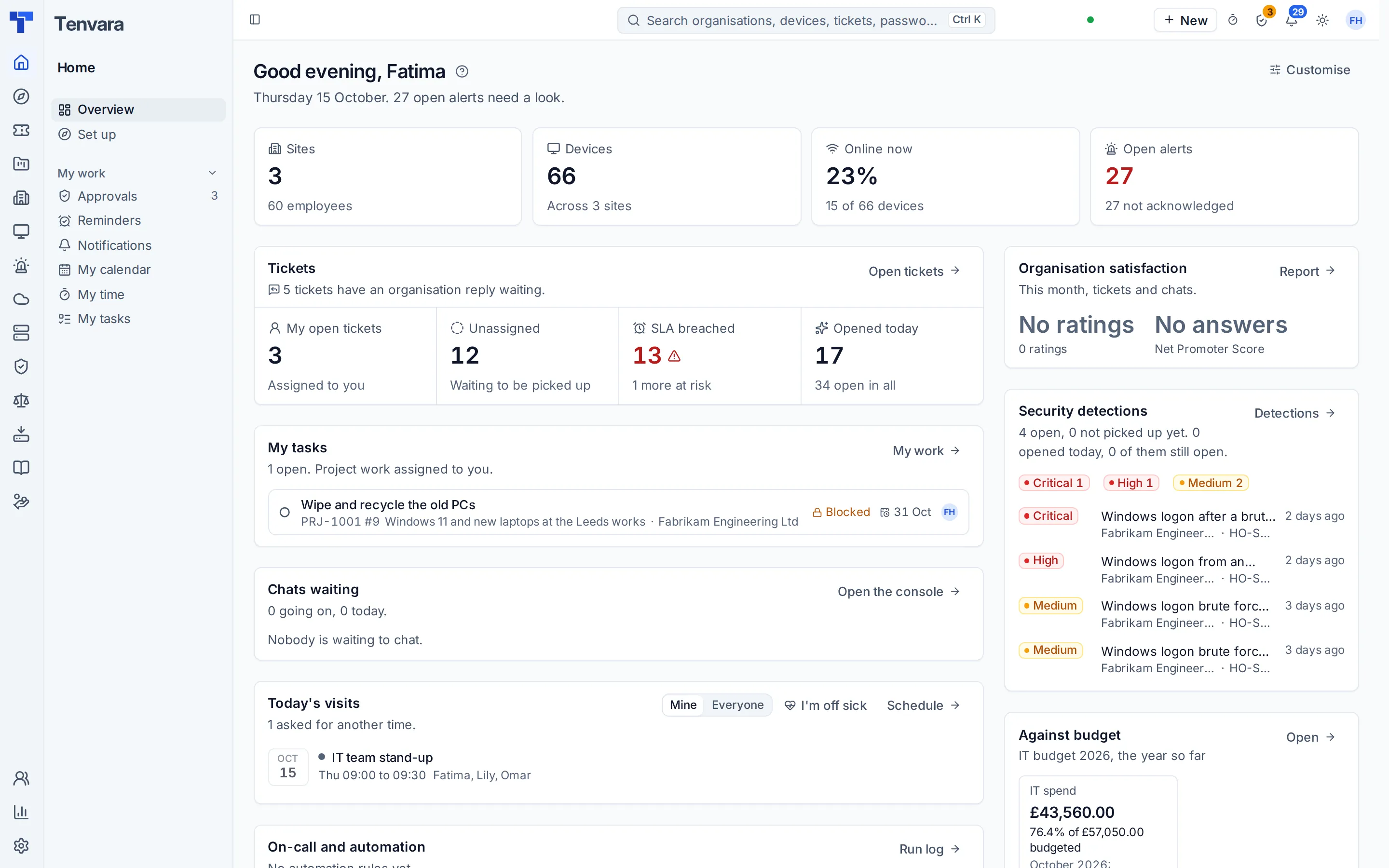
Every practice your service desk runs, from the first incident to the quarterly report, on the same records for your employees, departments and devices. Here is each one, with the guide that shows exactly how it works.
On this page
- Incident management
- Service requests and the catalogue
- Problem management
- Change management
- Major incidents and status pages
- SLAs, business hours and escalations
- Knowledge and the employee portal
- Assets and configuration
- Suppliers and supplier contracts
- Purchasing and IT spend
- Reporting and the IT leadership update
- Automation and on-call
- AI assist
Incident management
Incidents, worked properly from the first email.
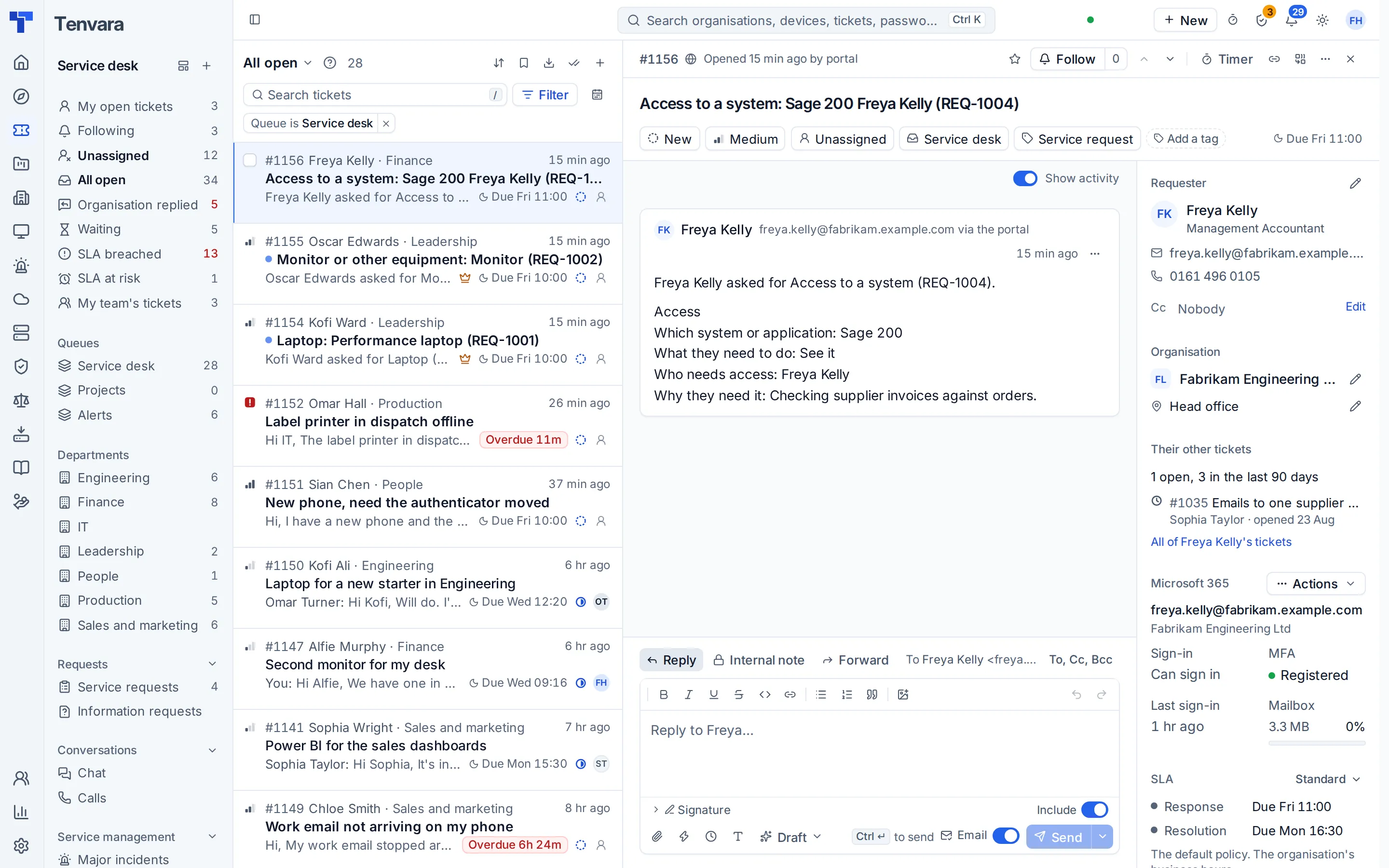
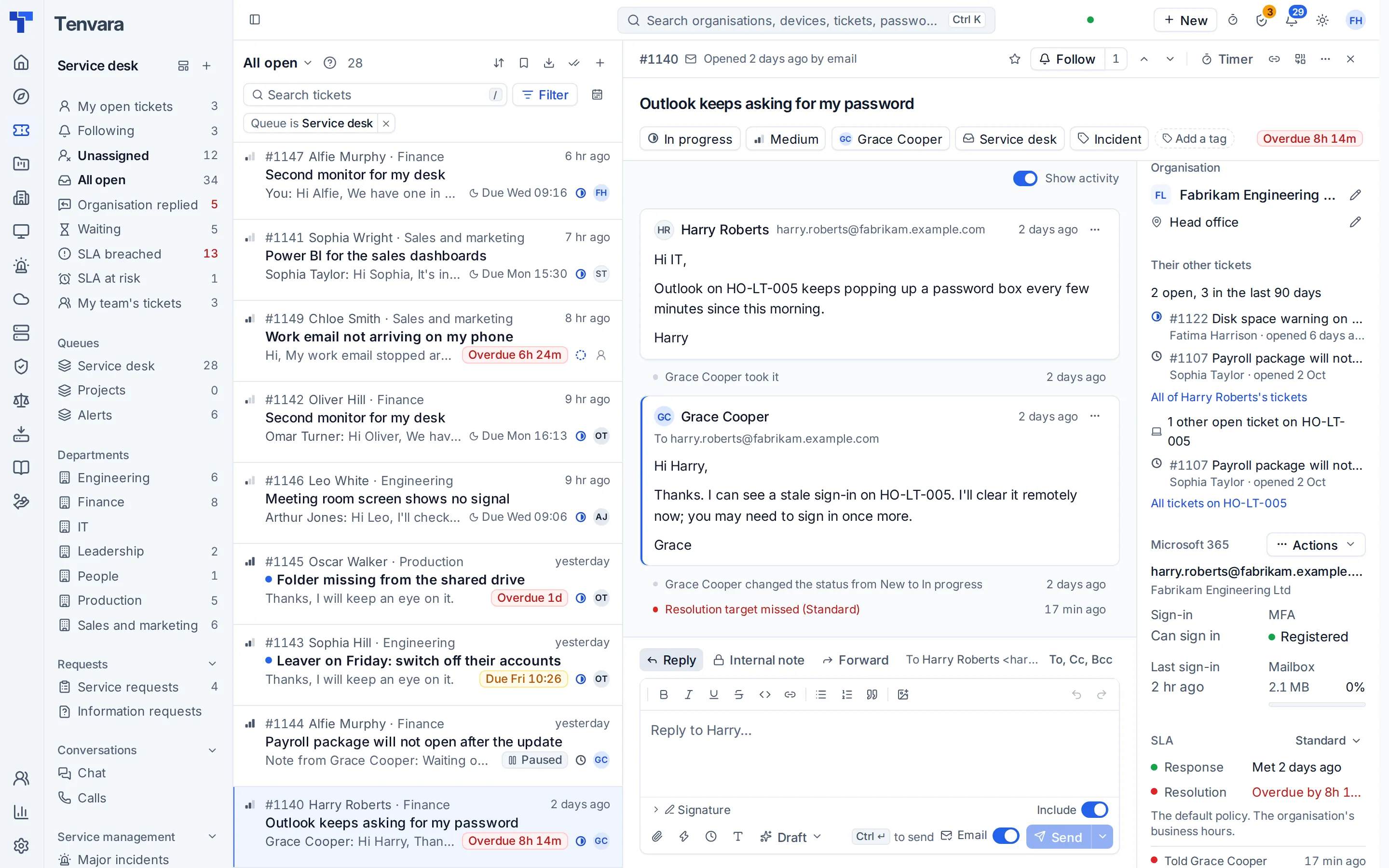
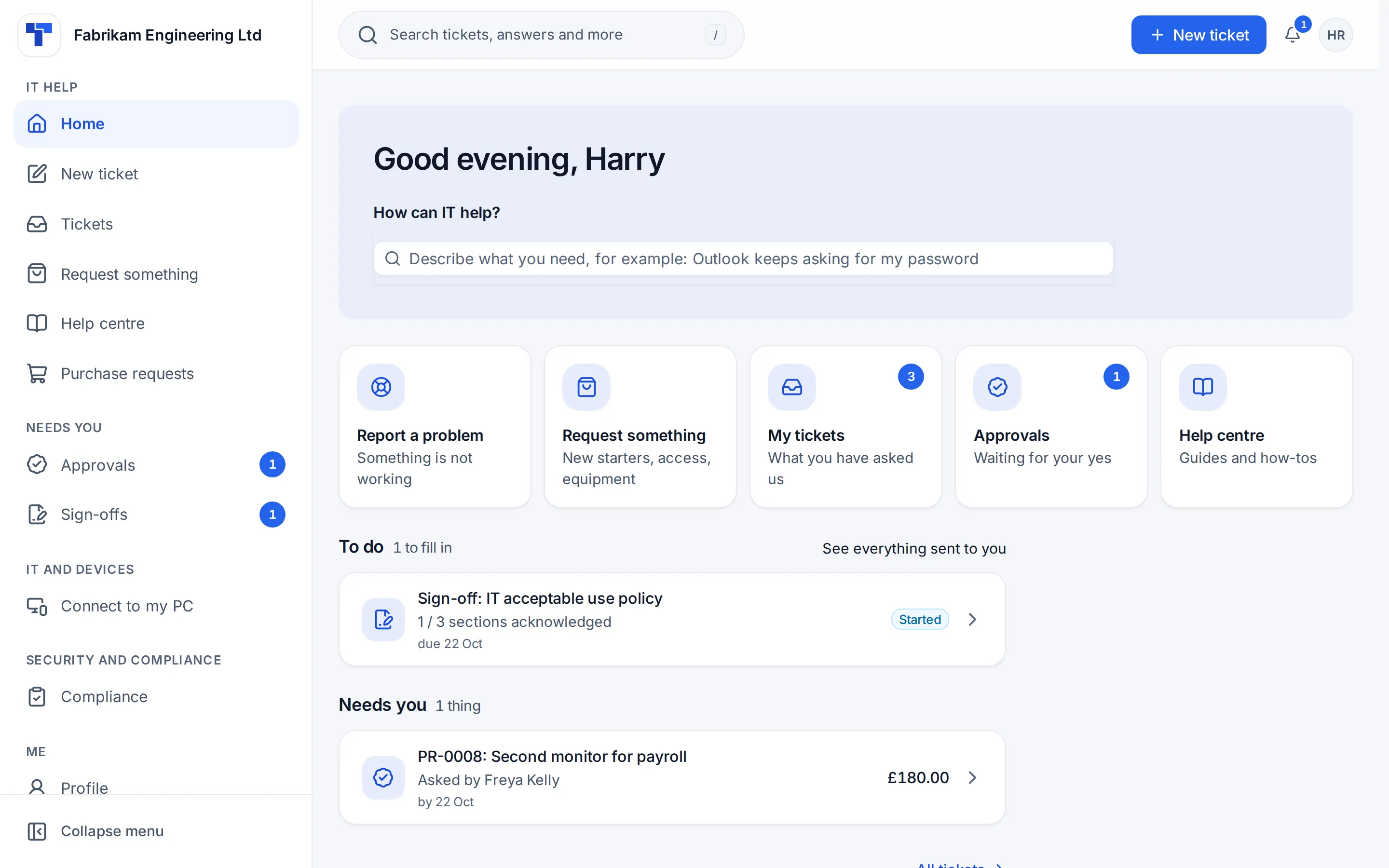
Employees write to the address they already use, raise a ticket in the portal, chat from the portal or the tray icon on their own computer, or the monitoring raises it for them. Every ticket knows who asked, which department they sit in and which devices they use, so your team starts from the facts rather than twenty questions.
- Priorities, queues and assignment, with SLA clocks on every ticket
- Parent and child tickets, so the same fault reported by twenty people is answered once
- Ticket templates with checklists, and recurring tickets for routine jobs
- Screen recordings with every step, sent from the employee's tray icon
- Collision warnings, so two people never answer the same ticket at once
- Categories in three levels, and on-hold reasons that pause the SLA clock while you wait for parts
- Verify identity before a password or MFA reset, with a code, a callback or the manager's approval, and every check recorded
Service requests and the catalogue
A service catalogue employees can actually use.
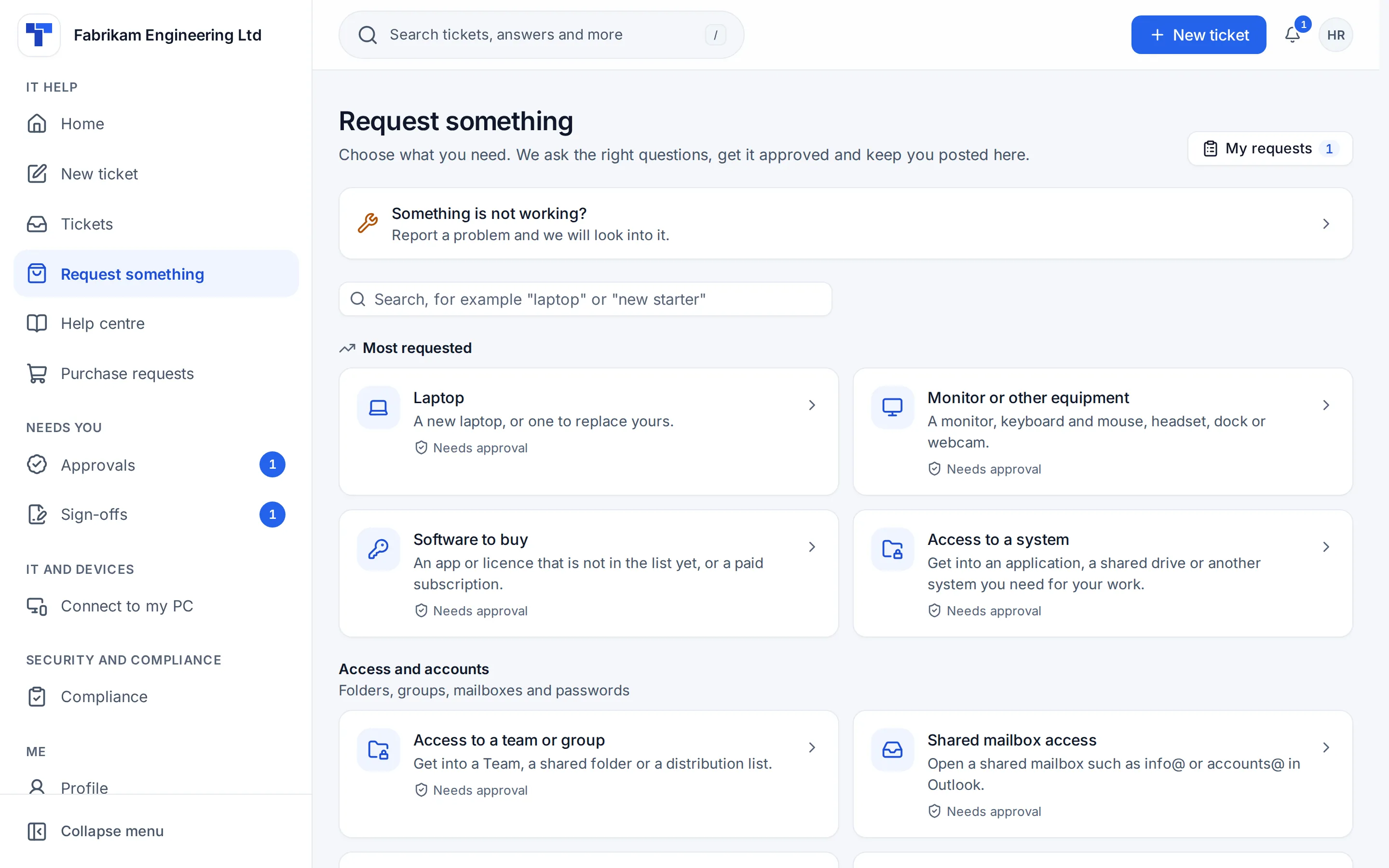
Request something is your service catalogue, in the employee portal. A laptop, a monitor, software, access to a system, a new starter or a leaver: each item has a form that asks only the questions that apply, goes to the employee's department manager and then to IT, and becomes a ticket with every answer written out. Anything that costs money raises a purchase request by itself.
- Forms with conditions, and pickers for your own Microsoft 365 users, licences, groups, mailboxes and devices
- The department's manager approves first, with delegates for anyone out of office
- Automations from the answers, such as a new starter's Microsoft 365 account made on the right day
- Information requests: questions employees answer in the portal at their own pace
- How long each item takes to fulfil, in Reports
Problem management
Fix the cause, not the same ticket every week.
A problem is the cause behind incidents. Link the tickets it explains, write the root cause and the workaround once, and every ticket it covers benefits. Publish a workaround with a root cause and the problem becomes a known error, with a draft knowledge base article written for you to check and publish.
- Numbered problems with an owner, a priority and the tickets each one explains
- Root cause and workaround, with known errors marked
- A known error article drafted for the knowledge base
- A major incident links to a problem, so the cause is worked once the outage is over
- A full history of every change to the problem
Change management
Changes with a plan, an approval and a way back.
Record what will happen, why, what could go wrong and how to undo it. Your change advisory board approves it, the change calendar shows it beside patch and maintenance windows, and Tenvara warns you when it clashes with another change, a patch window or an open major incident. Afterwards, a post-implementation review keeps what you learnt.
- Standard, normal and emergency changes, each with the approvals you set
- Risk and impact with a rating, plus implementation, rollback and test plans
- Templates for repeatable changes, approved in advance
- Edit an approved change and it goes back for approval, so every yes stands for what was seen
- Announced as scheduled maintenance on your status page once approved
Major incidents and status pages
When something big breaks, tell everyone once.
Declare a major incident from a ticket, the incident list or the command menu. Each update goes on the tickets, to the people affected by email, on the employee portal's banner and on your status page, and the timeline keeps every one. When it is resolved, the post-incident review starts with the timeline already filled in.
- Investigating, identified, monitoring and resolved, with an incident lead and impact
- Every update kept on one timeline, sent or internal
- A status page with components driven by monitoring and 90 days of uptime
- Subscribers hear by email, or by text through your own SMS provider
- Average time to resolve over the last 90 days
SLAs, business hours and escalations
Service levels by priority, department or VIP.
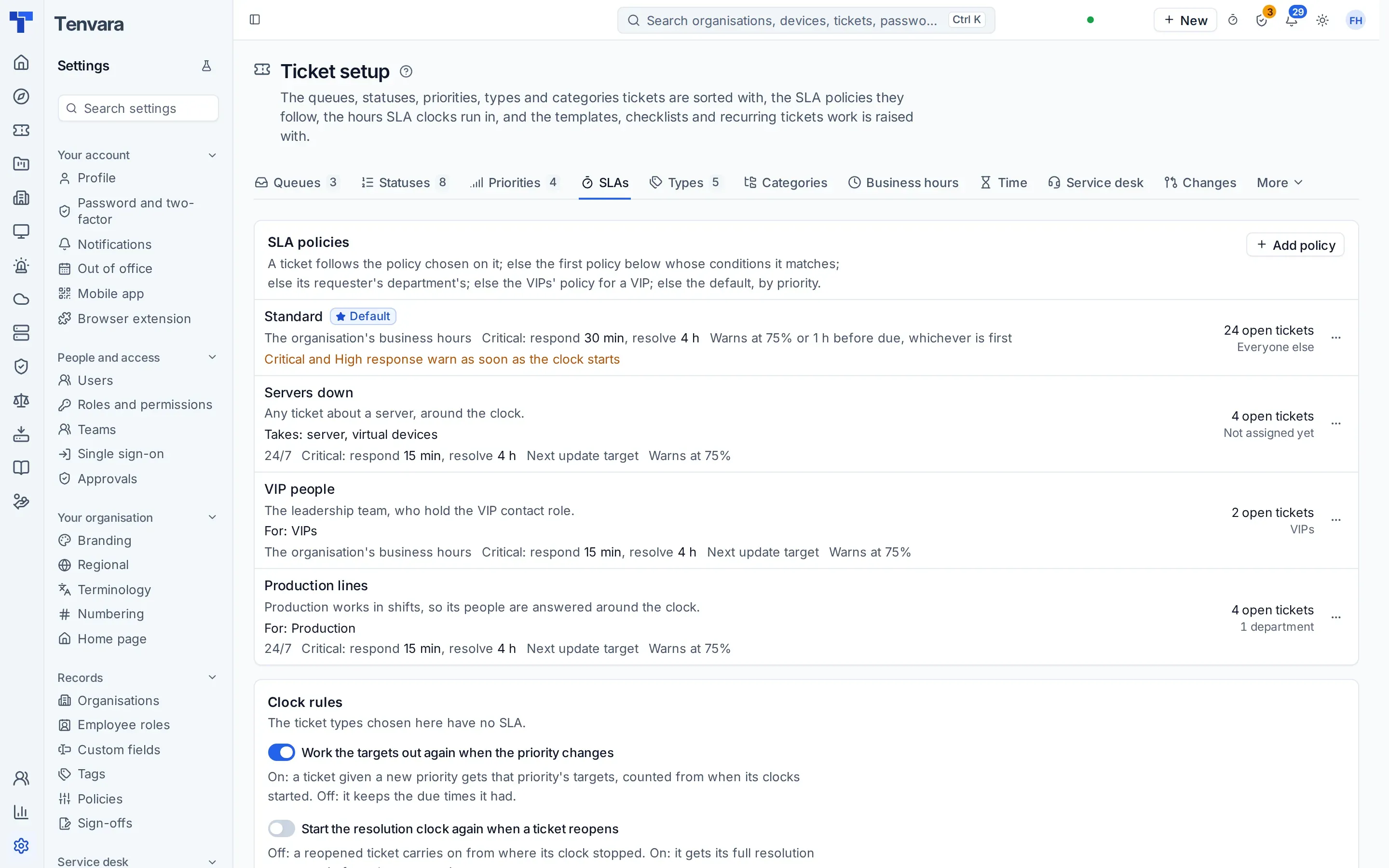
An SLA policy sets first response, next update and resolution targets for each priority. A ticket follows the policy chosen on it, the first policy whose conditions it matches, its requester's department, the VIPs' policy, or the default, and the ticket says where its policy came from. Clocks run in business hours, chosen hours or around the clock, with your public holidays.
- A department's policy covers the departments under it
- Directors and other VIPs get their own policy and a higher priority
- Escalations at a warning or a breach: tell the assignee or the leads, reassign, raise the priority or page whoever is on call
- OLAs for each queue, beside the SLA
- Breach reasons and reminders for tickets nobody has touched
Knowledge and the employee portal
Answers for your team, and a portal for everyone else.
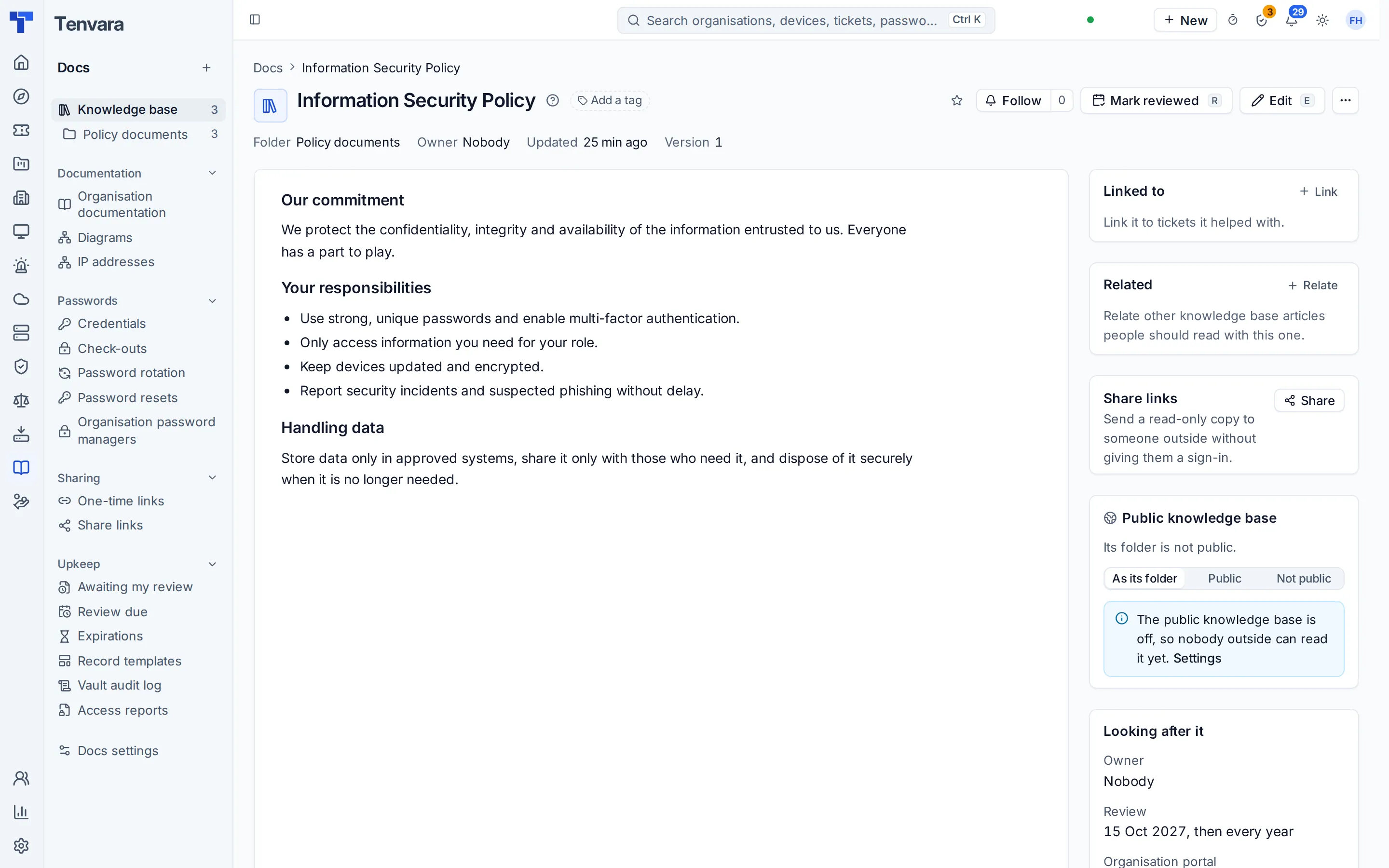
Write articles in folders from templates, send them for approval before they go live, and keep every version. Publish the right ones to the Help centre in the employee portal. Employees sign in with their work email or Microsoft work account, and find tickets, requests, approvals, sign-offs, the status page, their own devices and announcements from IT in one place, in your organisation's branding.
- Articles from templates, with approval, version history and reviews
- Tickets suggest the right articles while your team works
- The employee portal: IT help, Needs you, and the pages each person's role allows
- Portal roles for employees, department heads and admins, with several roles for one person where needed
- Ask IT chat from the portal or the tray icon
- Chosen articles as a public help centre on your own domain, if you want one
Assets and configuration
Know what you have, what it cost and when to replace it.
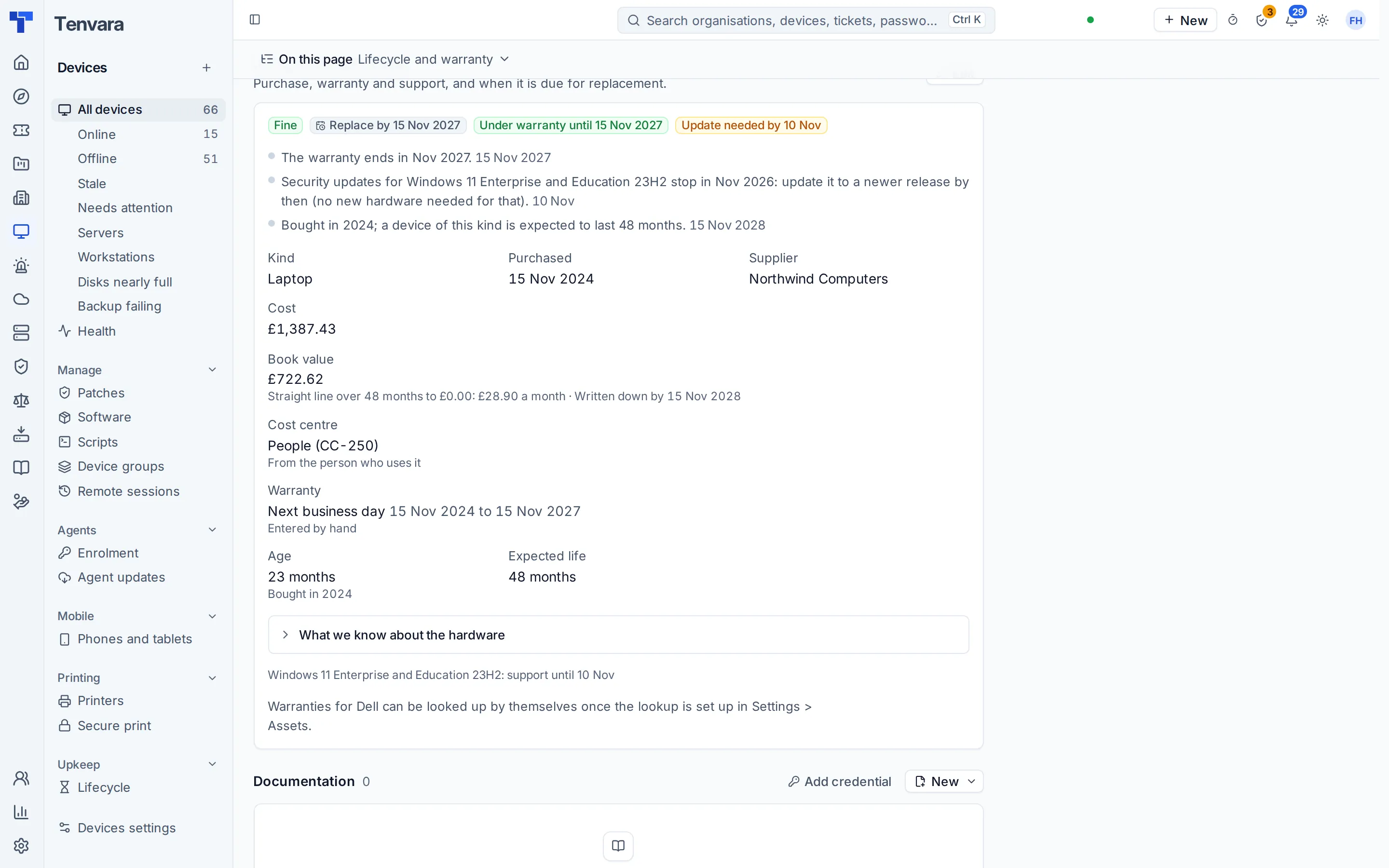
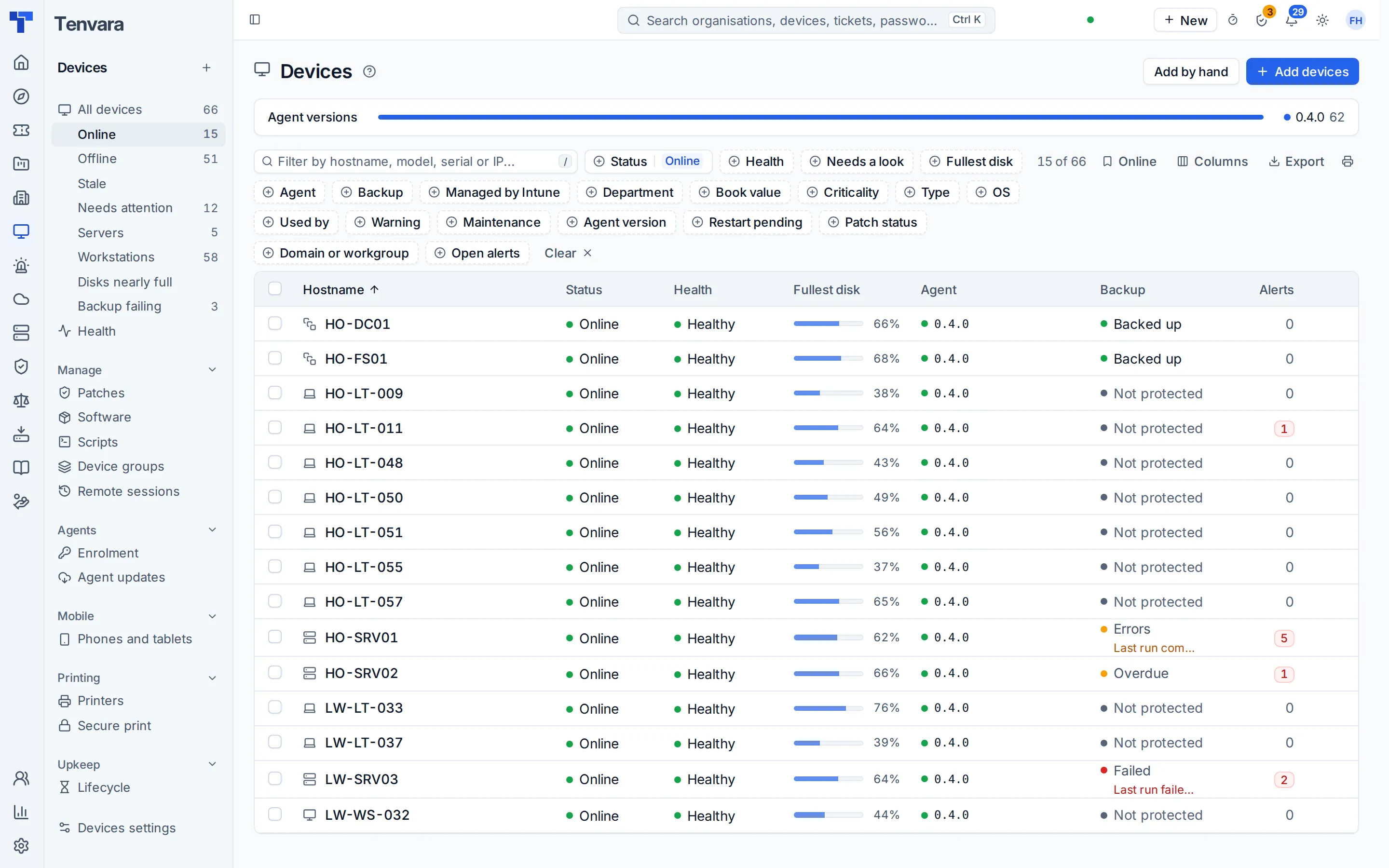
The agent keeps each computer's hardware and software inventory current by itself, and switches, firewalls, printers, phones and other kit without an agent sit in the same device list. Each device carries its purchase and warranty details, a refresh verdict and a book value, and the documentation that points at it shows on its page.
- Hardware and software inventory for every computer with the agent
- Warranty lookups for Dell and Lenovo, with your own keys
- Replace now, Plan for replacement or Fine, with a forecast of what replacing will cost
- Purchase cost written down to book value, with the cost centre from the device's department
- Documentation records linked to devices and to each other, drawn on a relationship map
- Network discovery at each site, with a topology map
Suppliers and supplier contracts
Every supplier contract, and every notice date.
Keep your suppliers and the contracts you hold with them: phone systems, broadband, leased lines and hosting. Tenvara works out the notice deadline and the renewal for each, shows them on a renewals calendar and alerts you before a date passes. Your software subscriptions sit alongside, with seats, cost and renewal dates.
- Supplier records, used by purchase requests and purchase orders
- Notice deadlines and renewals worked out for you
- A renewals calendar, and alerts before a deadline
- Import your existing contracts from a spreadsheet
- Subscriptions with seats, cost and renewal dates
Purchasing and IT spend
From "can I have" to purchase order, with the spend to show for it.
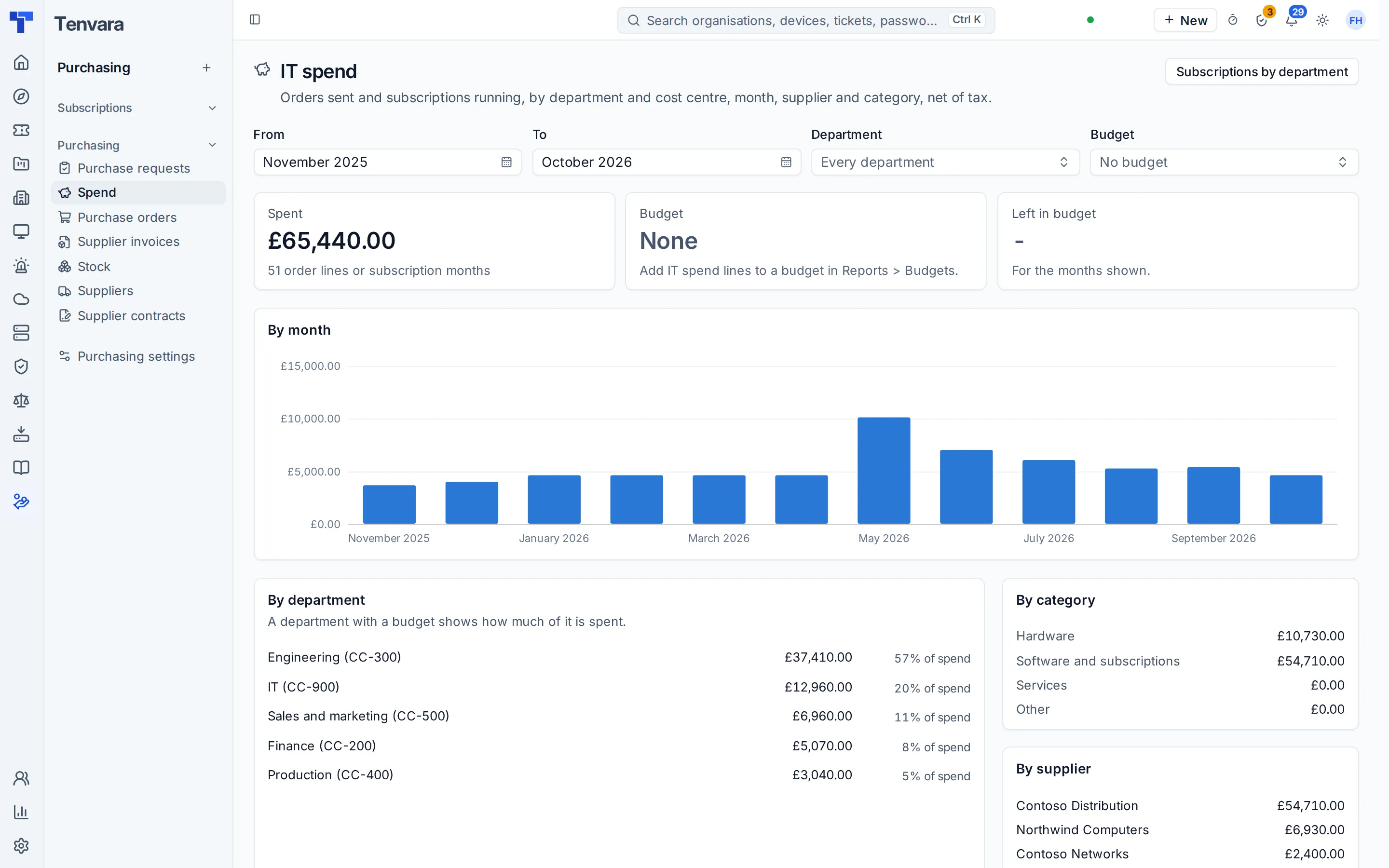
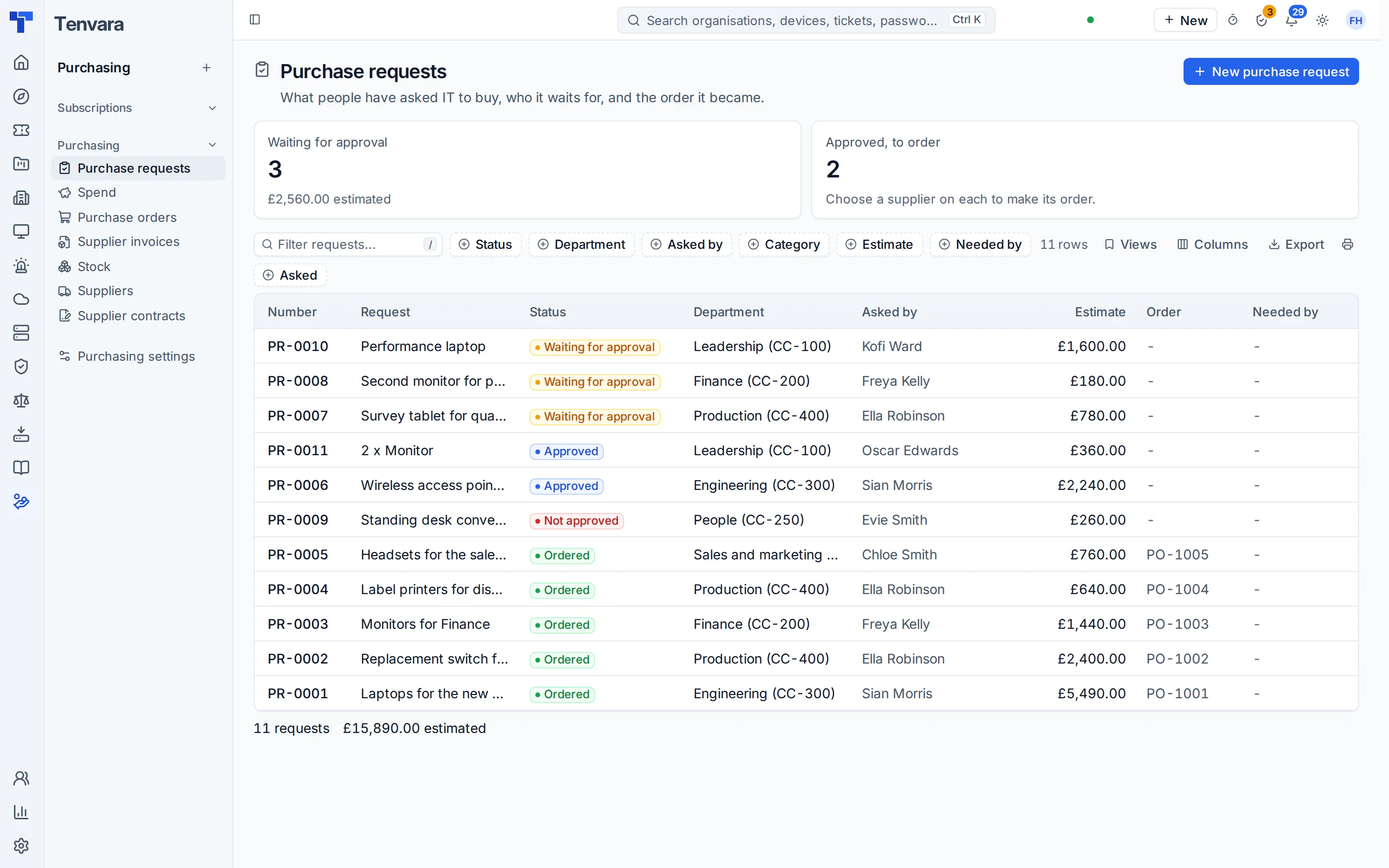
Anyone can ask for something to be bought. The department's manager approves, purchasing approves over the amount you set, and an approved request becomes a draft purchase order to its supplier. Purchasing then shows what IT has committed to spend by department and cost centre, month, supplier and category, against your budget.
- Purchase requests from employees in the portal, or from your team
- Approved catalogue requests for kit raise their own purchase request
- Purchase orders, receiving with serial numbers, supplier invoices and stock
- Spend by department, month, supplier and category, with subscriptions by department
- IT spend lines in your budgets, and an IT spend report to build on
Reporting and the IT leadership update
Show what IT does, in figures your board will read.
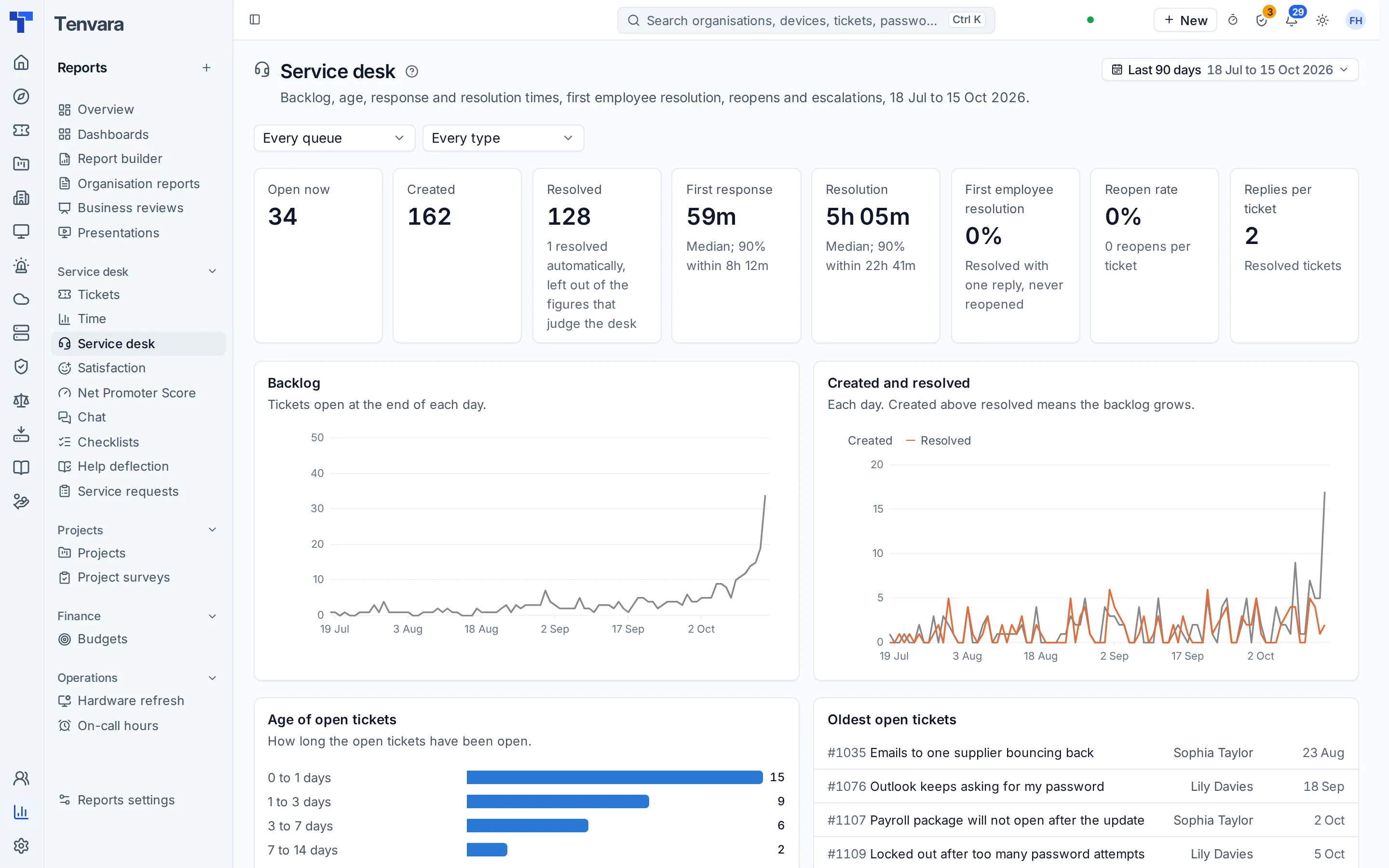
Reports cover the service desk, SLAs by policy, OLAs, service requests, projects and operations. Build your own from any dataset, save and schedule them, and put them on dashboards with targets. Once a quarter, the IT leadership update turns a review into a deck for your management: requests and spend by department, the decisions you need and the budget behind them.
- SLA results by policy, breach reasons and each queue's OLA performance
- A report builder with saved and scheduled reports
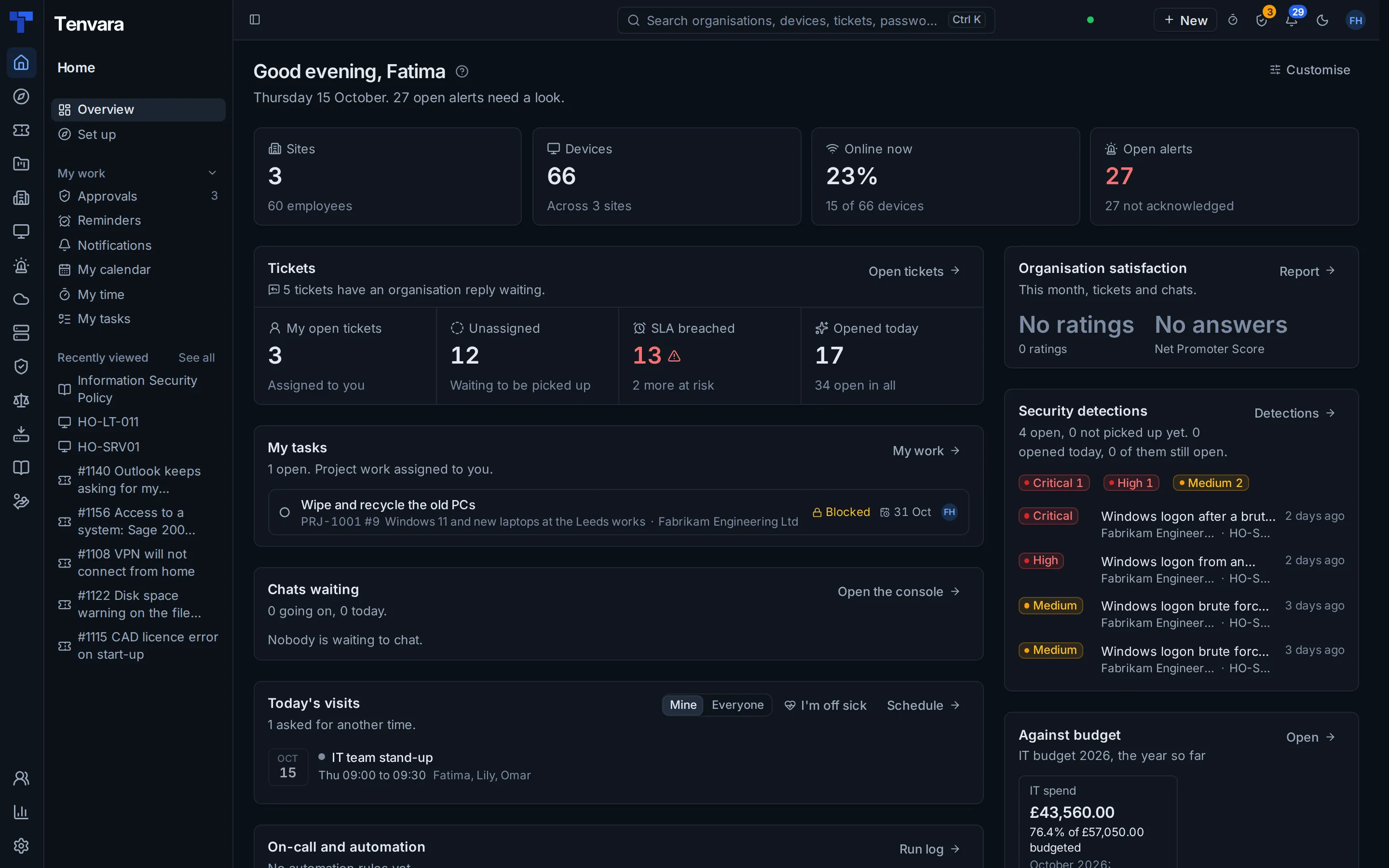
- Dashboards with KPIs and targets, and a Home layout for each role
- Wall screens for the IT office
- The IT leadership update, with agreed decisions turned into projects
Automation and on-call
Let the routine run itself, and wake the right person when it matters.
Automation rules act on tickets, alerts and devices: open or update a ticket, assign it, reply, run a script, deploy software or page whoever is on call. Test a rule with a dry run before it goes live, keep its versions, and read the run log afterwards. On-call rotas with cover and escalation policies page whoever is on duty, and they acknowledge, escalate or snooze from there. Out of hours, each queue can belong to nobody until the morning, your own rota or an out-of-hours provider.
- Conditions and placeholders across tickets, alerts and devices
- Dry runs, versions and a run log for every rule
- Webhook triggers for alerts from other tools
- On-call rotas, cover, swaps and hand-overs
- Pages by browser push, text or a phone call through your own calling account, with an on-call report
- Out-of-hours cover per queue, with held alerts waiting for the morning list
AI assist
AI that helps your team, only if you want it.
AI is off until an administrator adds your own Anthropic key, and then it is switched on feature by feature. It suggests the priority and queue for new tickets, summarises long threads, drafts replies from your knowledge base, and investigates a slow computer with read-only checks before anyone remotes in. Nothing reaches an employee until a person sends it.
- Triage, summaries and draft replies that a person edits and sends
- Device investigations with read-only checks and evidence
- Passwords and the credentials vault are never sent
- Costs by feature and model, with caps per ticket and per month
- Every AI action in one activity log
Run your service desk properly, from one place.
Tenvara for IT teams is in early access. Apply and tell us how your service desk works today, or get launch updates by email and hear first when pricing for IT teams is announced.