Moving to Tenvara
Move over one step at a time.
There is no big switch-over weekend. Bring Tenvara in one area and one customer at a time, run it alongside the tools you use today, and turn each old tool off only when you are confident.
How every step works
Calm, checked and reversible.
Worrying about a mass change is sensible. So the move is built from small steps you can see before they happen and take back if they are not right.
Your old tools stay as they are
Importers only read. Nothing is ever written back to your PSA, RMM or documentation tool, so it keeps working exactly as today.
Checked before anything is written
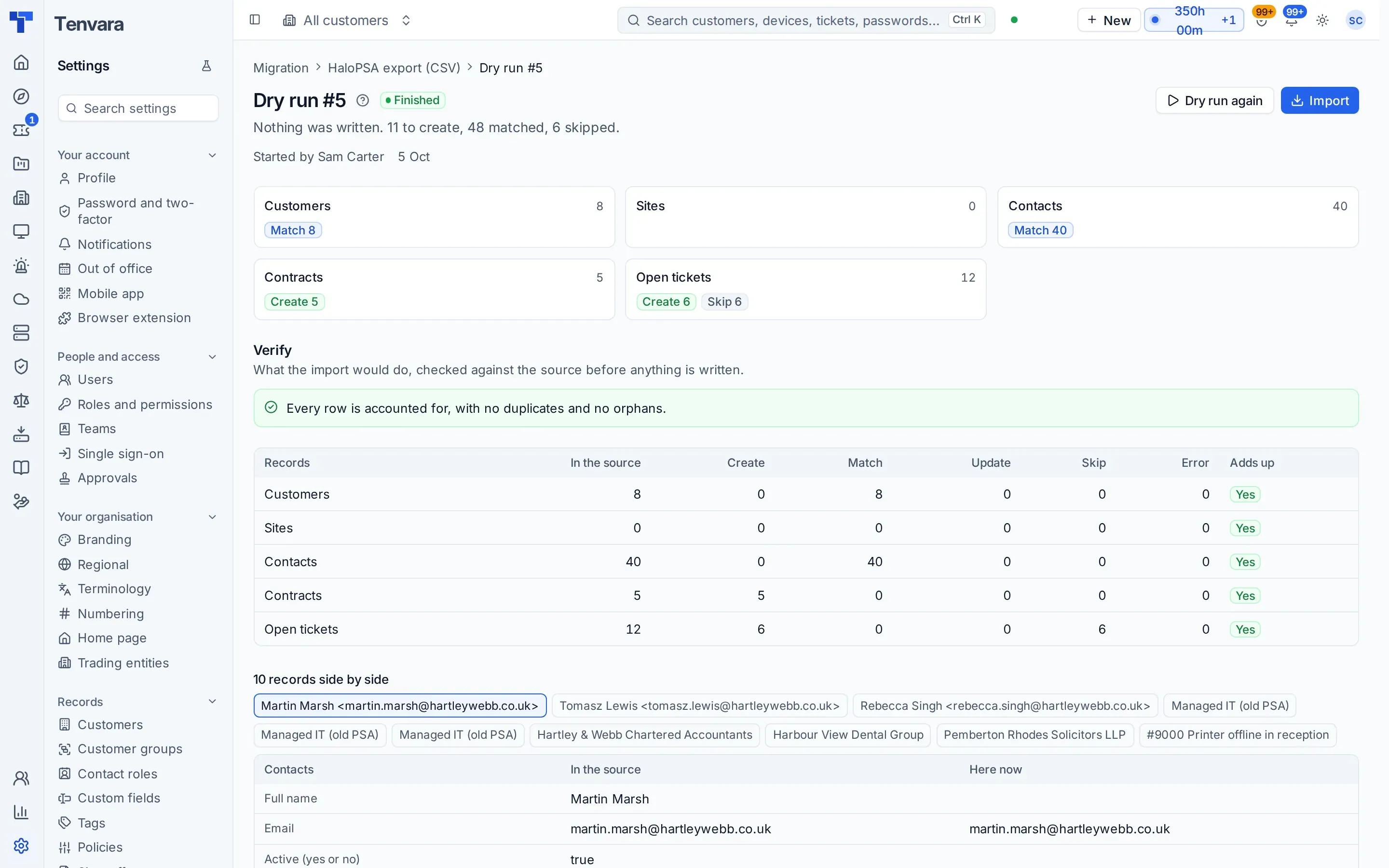
A dry run shows what would be created, matched or skipped, and Verify checks every row in the source is accounted for.
Every step can be taken back
Imports can be undone, modules switched off with nothing deleted, and setup steps undone for 7 days.
The plan
Seven steps, at the pace you choose.
This is the path most MSPs follow. Spend as long as you like on each step, and go back a step whenever you need to.
-
1
Plan the move
Answer the setup helper's discovery questions, about ten minutes, including which tools you use today and whether you want to move everyone at once or customer by customer. It builds a plan of sections in the right order, with an estimate for each.
Meanwhile
Everything. Nothing has changed yet.
-
2
Switch on one area first
A new Tenvara starts with the service desk. In Settings > Modules, switch on the next module you are ready for: Tenvara turns on what it needs and opens its setup steps. Suggested next shows what most teams add after it, and you add each one when the last has settled in.
Meanwhile
Every job you have not moved yet stays in your current tools.
-
3
Bring your data across
Import customers, sites, contacts, devices, assets and credentials from CSV, contracts and open tickets from HaloPSA, ConnectWise Manage, Autotask or Syncro exports, documentation and passwords from IT Glue or Hudu, and your sales history from a Zoho CRM, HubSpot or Pipedrive export. Every import starts with a dry run that writes nothing.
Meanwhile
Your old tools, untouched. Tenvara only reads from them.
-
4
Run side by side
Keep working in your old tools while you get to know Tenvara. Run an import again whenever you like: only what changed comes across, without duplicates. The IT Glue and Hudu connectors keep documentation in step, and imported contracts stay as drafts so nothing is invoiced twice.
Meanwhile
Billing and day-to-day work carry on where they are today.
-
5
Move a pilot customer
Pick one customer. Install the Tenvara agent on their devices next to your current agent, connect their Microsoft 365 tenant, point their support email at Tenvara and invite their contacts to the portal. A new customer starts in onboarding mode for 7 days: findings go to one report, and automatic changes wait.
Meanwhile
Every other customer stays on your current tools.
-
6
Move the rest, customer by customer
Roll the agent out to one customer at a time with an enrolment token each. The setup helper checks that every customer's computers and servers report, so you can see who is done before you start the next.
Meanwhile
Customers you have not reached yet keep running as they are.
-
7
Switch off the old tool
Run a final import so nothing changed in the meantime is missed, remove the old agents with the old tool's own uninstall, and stop using it for that customer. The setup helper checks the old agents are gone.
Meanwhile
Keep the old tool read-only for a few weeks, for the odd "what did the old system say?"
Start with the part that hurts most.
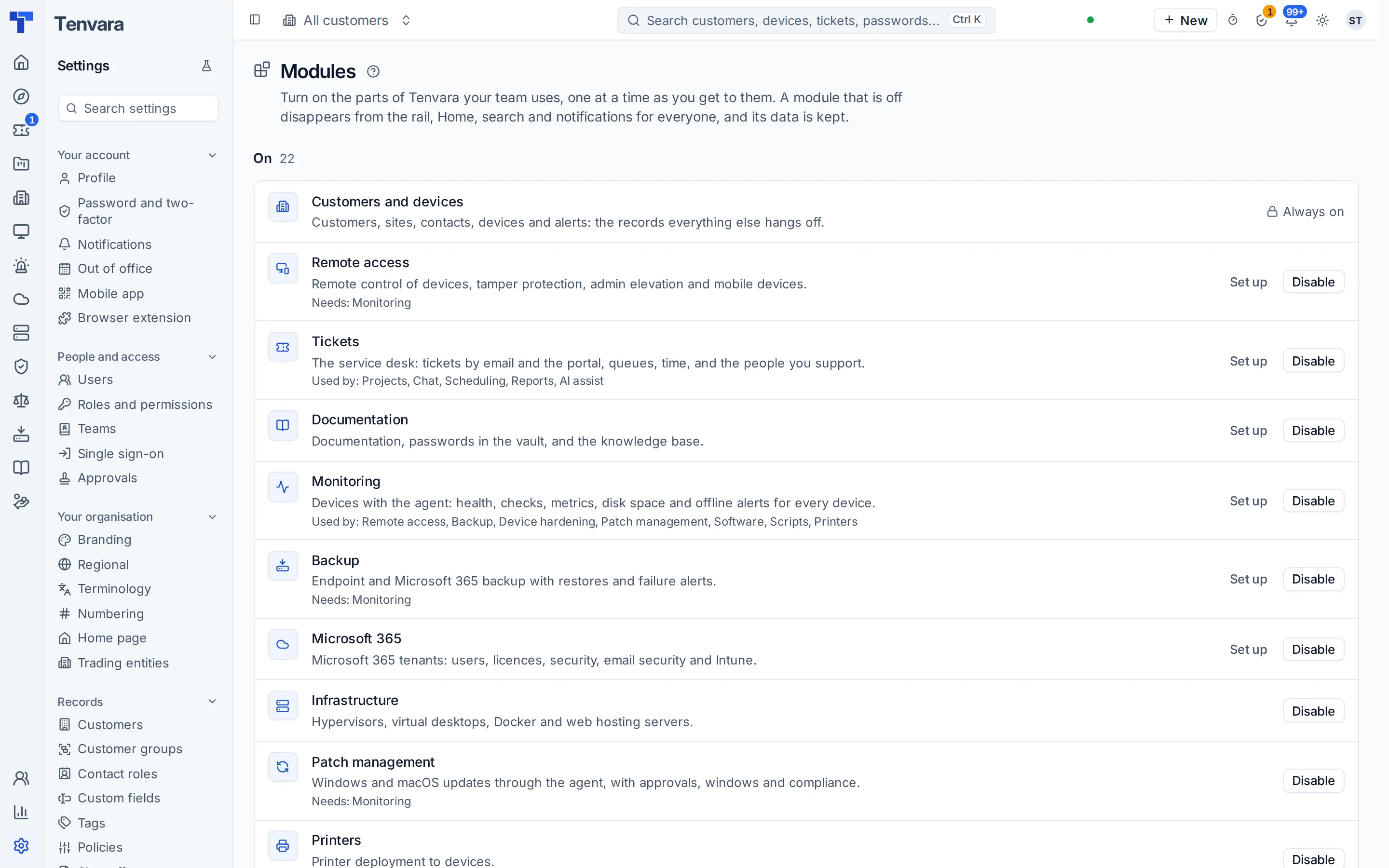
Tenvara is one app, but you do not have to use all of it on day one. A new install starts with the service desk, and every other module waits, one click away, until you are ready for it. Your team only sees areas that are ready, and the setup assistant walks you through each new one.
- Suggested next shows the modules most teams switch on after the ones you have
- Enable turns on what a module needs and opens its setup steps
- A module that is off is really off: hidden, its work and alerts stopped, its data kept
- Nothing to reinstall on devices: the agent already carries every module
Bring it across without retyping it.
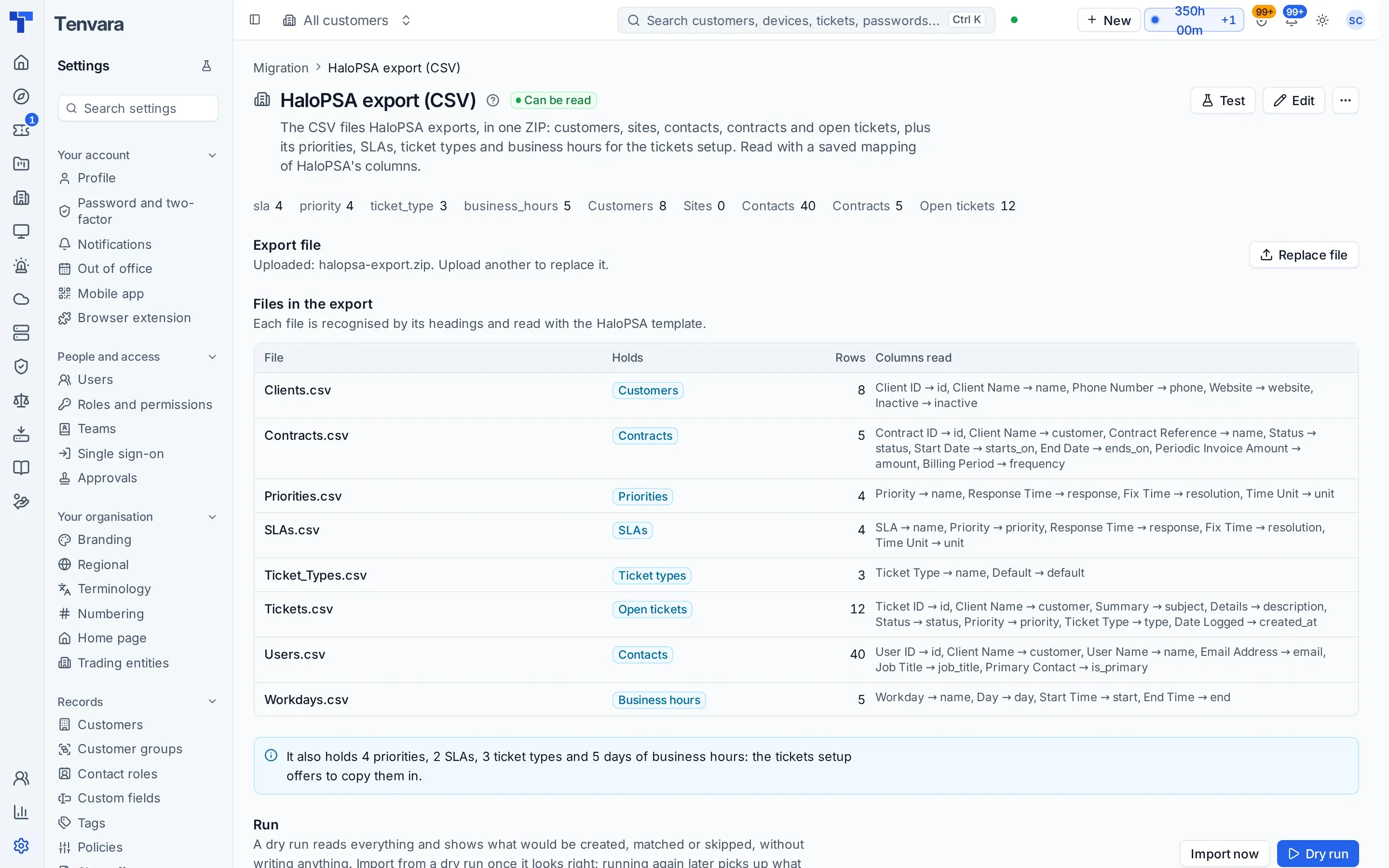
Give Tenvara your PSA's own export and it recognises each file by its headings, shows which columns it reads, and maps them for you. Records you already added are matched, not duplicated, and you can decide any match by hand.
- CSV files for customers, sites, contacts, devices, assets and credentials
- HaloPSA, ConnectWise Manage, Autotask and Syncro exports
- IT Glue exports and Hudu, keeping your folders
- Zoho CRM, HubSpot and Pipedrive exports, with deals at their stages and their notes, calls and meetings
- Your old priorities, SLAs, ticket types and business hours copied into your ticket settings
During the move
What stays where, and when it moves.
Nothing has to jump at once. Each job moves when you are ready for it, customer by customer.
If a step is not right
Every step has a way back.
Check first with a dry run and Verify. If something still needs undoing, it can be.
Undo an import
Undo import removes everything that import created, newest first, and unlinks the records it matched without deleting them.
Read howSwitch a module off
It disappears for everyone and its background work stops, and nothing in it is deleted. Switch it back on and everything is where you left it.
Read howUndo a setup step
The setup helper can undo an applied section for 7 days, putting every setting back, and it leaves alone anything a colleague changed since.
Read howContracts back to drafts
Making imported contracts active can be undone, which puts them back to drafts while your old PSA carries on billing.
Read how
You are not doing it alone.
Beta members have a direct line to the team building Tenvara. Questions and problems during your move go straight to the people who can answer them: reply to any of our emails. Invitations go out in small groups so each one is well supported.
Worried about one platform?
Outages, breaches, lock-in and a young vendor: what Tenvara does about each, and the questions worth asking any supplier.
Questions
What MSPs ask about moving.
Every importer has a step by step guide in the knowledge base. Anything else, ask us directly.
No. A new Tenvara starts with the service desk, and you switch on the other modules one at a time, move one customer at a time, and keep your current tools running alongside until you are confident.
Yes. Install it alongside, and remove the old agent with the old tool's own uninstall once the customer has moved. While a new customer is in onboarding mode, what Tenvara finds goes into one findings report and automatic changes wait. Taking a customer over from another provider? Takeover mode holds patching, installs, scripts and backups until you say so.
Spreadsheets as CSV, HaloPSA, ConnectWise Manage, Autotask and Syncro exports, an IT Glue export, and Hudu through its API. That covers customers, sites, contacts, devices, assets, credentials, contracts, open tickets and documentation. For your sales work, a Zoho CRM, HubSpot or Pipedrive export brings accounts, contacts, leads, deals and their history into the CRM.
No. Tenvara only reads from your old tools and never writes back to them. The IT Glue and Hudu connectors can sync knowledge base articles both ways if you choose, and nothing is ever deleted on either side.
Every import can start with a dry run that writes nothing, and Verify checks every row in the source is accounted for, with no duplicates and no orphans. If an import is still not right, Undo import removes what it created.
No. Contracts imported from your PSA arrive as drafts, so your old PSA keeps billing until you switch billing over, and making them active can be undone.
It depends on how many customers and tools you have. The setup helper's plan gives an estimate for each section from your answers and your number of customers, and shows the earliest date you could go live.
Beta members have a direct line to the team building Tenvara. Reply to any of our emails with questions or problems during your move, and the knowledge base has a step by step guide for every importer.
Start small. Move when you are ready.
Tenvara is coming soon, and we are inviting MSPs to the beta in small groups. Apply, tell us which tools you use today, and start with one customer or one job.