October is Cyber Security Awareness Month, and with a few days of it left, your clients will have seen a lot of posters about strong passwords and phishing. That's useful. But the quickest security win most MSPs can give a client this month isn't a training session. It's an honest look at how their Microsoft 365 tenant is actually set up.
The trouble is that most MSPs look after dozens of tenants, and each one drifted in its own way. So here's a checklist that works whichever tools you use, and a word on doing it across every tenant rather than one at a time.
Start with MFA, and check the real coverage
"We turned on MFA" usually means something narrower than it sounds. Ask three questions of every tenant:
- Do administrators have to use MFA? Not "have they registered it", but is something enforcing it, such as security defaults or a Conditional Access policy.
- Does everyone else have to use it? Staff accounts are how most attacks start, not admin ones.
- Who has no method registered at all? Those people are one password away from a problem, and the first MFA prompt an attacker triggers could end up registering the attacker's phone.
Remember the exceptions you meant to make. Emergency access (break-glass) accounts are supposed to sit outside your Conditional Access policies. A good review recognises them rather than flagging them as a failure every time.
Count the administrators
Global Administrator is the role that can do everything, and it tends to spread. Someone needed it for a migration three years ago and still has it. A supplier was given it for a one-off job.
Aim for a small, known set: a couple of named admins plus your emergency accounts. Then look at who holds any directory role, not only Global Administrator. Every role on the list should have a reason you can say out loud.
While you're there, check for blocked accounts still holding licences and accounts nobody has signed into for months. Neither is a breach, but both are loose ends, and the first one is costing your client money.
Close the old doors: legacy authentication
Old protocols such as IMAP and POP can't do MFA. If they still work, a stolen password is all an attacker needs, however well your MFA policies are written.
Two things to check:
- Is legacy authentication blocked by policy?
- Are there any legacy sign-ins in the logs, and did any of them succeed?
A successful legacy sign-in from a country the client doesn't operate in is the kind of thing you want to find in October, not in a post-incident review. Device code sign-in is worth blocking too, as it has become a favourite route for phishing.
Look for risky configuration
This is where tenants differ most, and where settings chosen for convenience years ago are still sitting there. A short list worth going through:
- User consent to apps. Can any user grant a third-party app access to their mailbox or files? Consent phishing relies on exactly that.
- Enterprise apps with high privilege. Which apps can read everyone's mail, read every file or change the directory, and does anyone still use them?
- Mail forwarding outside the organisation. Automatic forwarding and odd inbox rules are classic signs of a compromised mailbox.
- The audit log. If it's off, you can't investigate anything later.
- External sharing. Can files in SharePoint be shared with anyone who has the link, and can guests reshare them?
- Email authentication. SPF, DKIM and DMARC on every domain the client sends from.
None of these is exotic. They're just easy to miss when you only open the admin centre to fix something else.
Findings are only half the job: act on detections
A tidy configuration lowers the odds. It doesn't tell you when something is happening. For that you need to watch sign-ins and changes as they arrive: risky sign-ins, someone added to an admin role, a Conditional Access policy switched off, a new app granted consent, the audit log turned off.
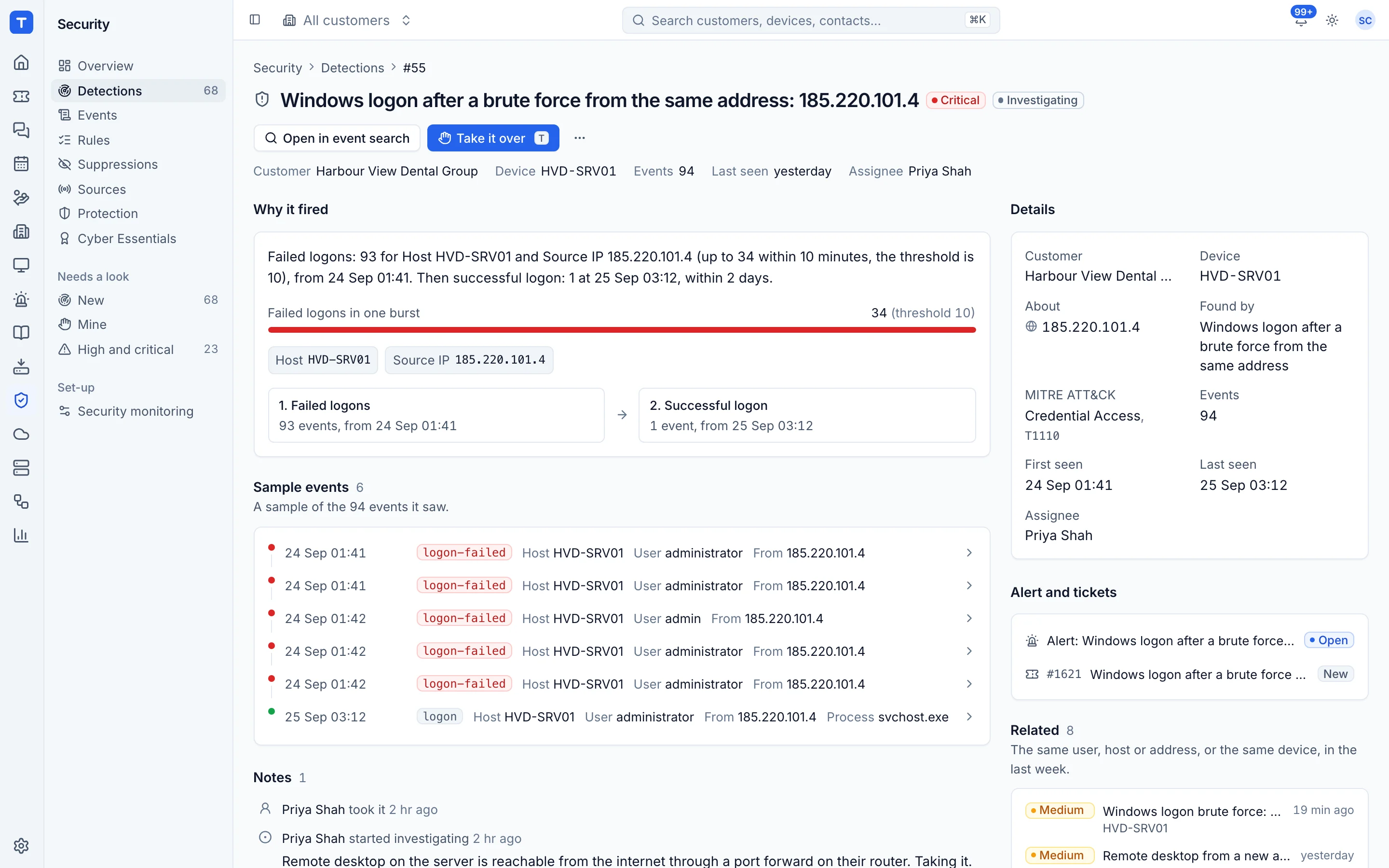
The important bit is what happens next. An alert that lands in a shared inbox and waits until Monday isn't monitoring. Every detection should have someone who takes it, looks into it, writes down what they found and closes it, with a clear trail if the client ever asks.
One tenant at a time doesn't scale
Here's the honest problem with everything above. If you have 40 clients and each review takes an hour in the admin centres, that's 40 hours, and by the time you finish the first tenant has changed again.
The fix is to run the same baseline against every tenant automatically, look at the results side by side, and spend your time on the tenants and findings that matter most. A worst-first list across all your clients turns a month of clicking into an afternoon of decisions.
How we handle it in Tenvara
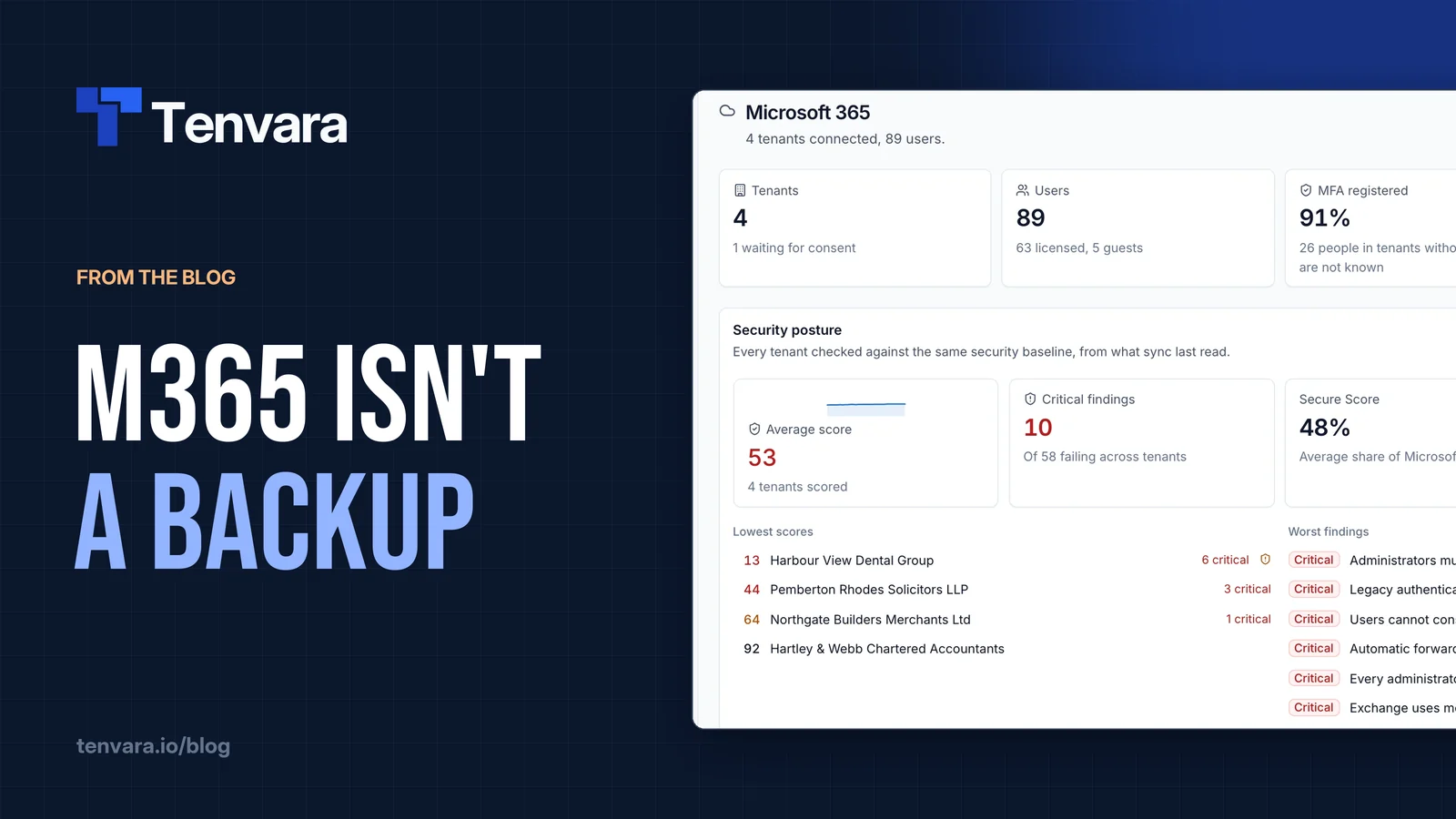
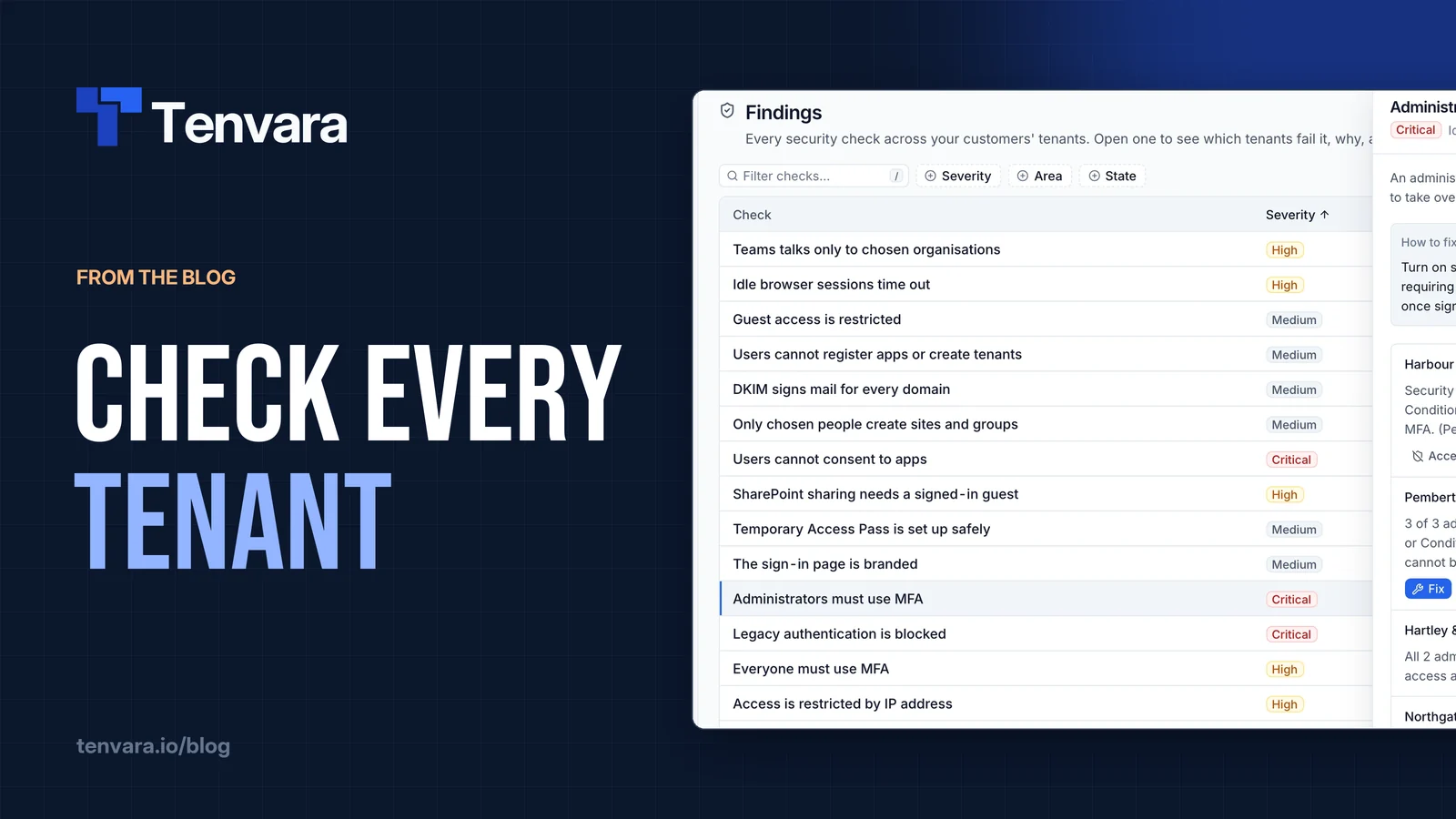
In Tenvara, every connected tenant is checked after each sync against the same baseline of 43 security checks, grouped into identity and access, applications, email, auditing, and data and sharing. They cover the things in this post: administrators and everyone using MFA, legacy authentication blocked, two to four Global Administrators, emergency access accounts, device code sign-in, user consent to apps, forwarding outside, suspicious inbox rules, the audit log and SharePoint sharing, among others.
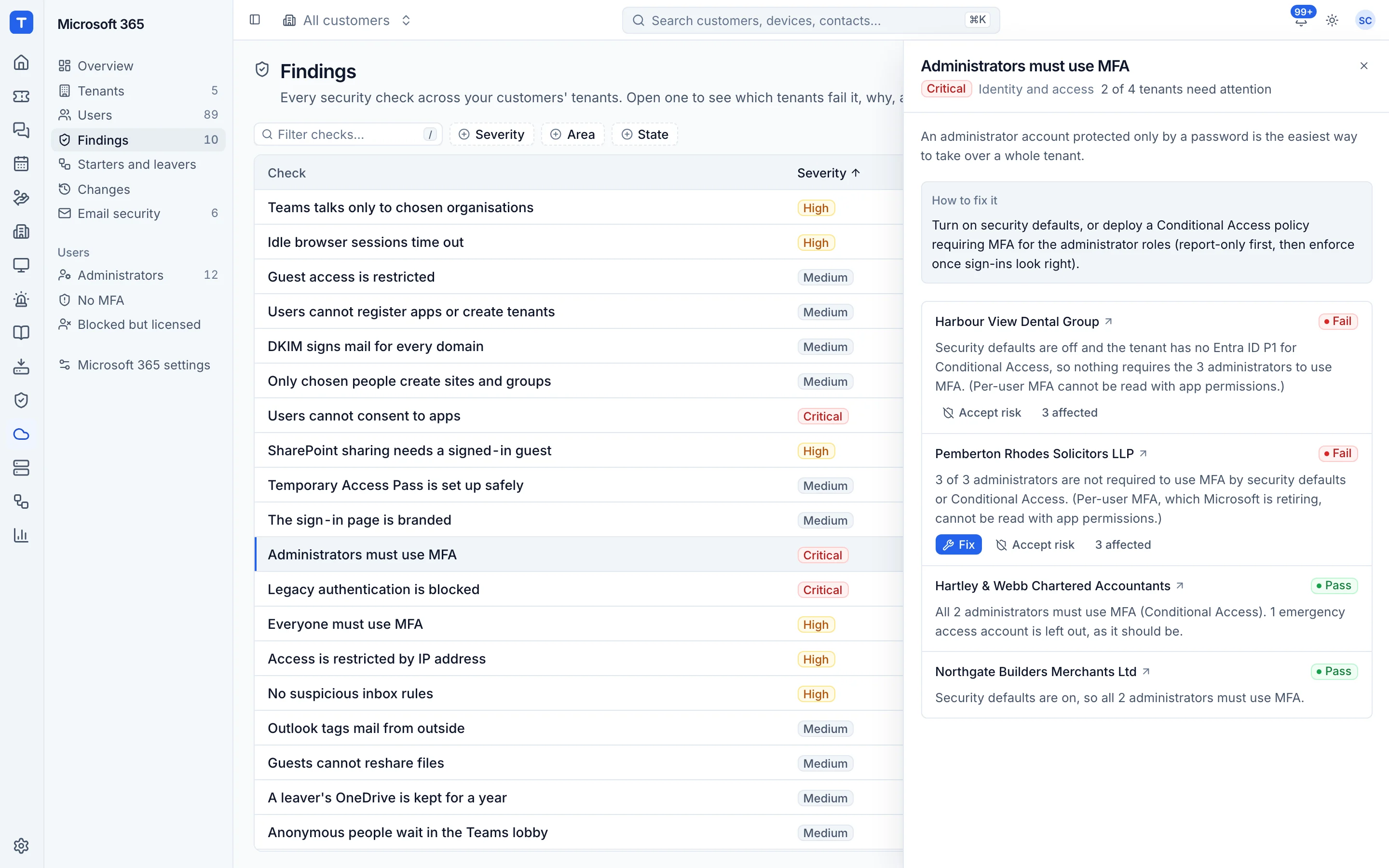
Findings lists every check with how many tenants fail it, and each tenant gets a posture score out of 100 with Microsoft's Secure Score alongside. When Tenvara can't read something, the check says Not known rather than pretending it passed. Many checks have a Fix button that goes through a preview first, and Conditional Access templates are deployed report-only so you can watch the sign-in logs before you enforce them. If a finding is deliberate, you accept the risk with a reason and an end date.
The Frameworks tab maps the checks to the CIS Microsoft 365 Foundations Benchmark, the NIST Cybersecurity Framework, the CISA SCuBA Microsoft 365 baselines and the ACSC Essential Eight. Controls no check covers are marked to check by hand, never counted as met. The detail is in Security findings and Sign-ins, apps and policies.
For the watching part, each tenant's sign-ins, directory audit log and risk detections flow into Tenvara's security events alongside your devices and network gear. Detection rules turn what matters into detections your team takes, investigates, notes and closes, with the alert and ticket each one raised linked alongside. See Working detections and the Security and Microsoft 365 pages.
If you're pairing this review with backup, our post on Microsoft 365 backup and shared responsibility covers the other half of the conversation.
Pick one client this week, run through the checklist, and see how long it takes. That number is the best argument for doing it every tenant at once.