Most MSPs have an automation project on the whiteboard. It's big, it's ambitious, and it has been "next quarter" for a year. Meanwhile someone on the desk clears the same stuck print queue three times a week.
The hours don't come back from the grand project. They come back from small, dull jobs that happen over and over, each one automated on its own. Here's where to look, whatever tools you use.
Scripts for the routine fixes
Every service desk has a handful of fixes it could do in its sleep. Clear the print spooler. Restart a service that falls over. Clean up a full disk. Flush DNS. Check whether a machine is waiting on a restart.
Each one is a few minutes of remote session, plus the time to find the device, connect, and write it up. Turn each into a tested script with a sensible name, and the fix becomes one click from the ticket. Keep the scripts in one library with versions, so everyone runs the same thing and you can tell later exactly what ran.
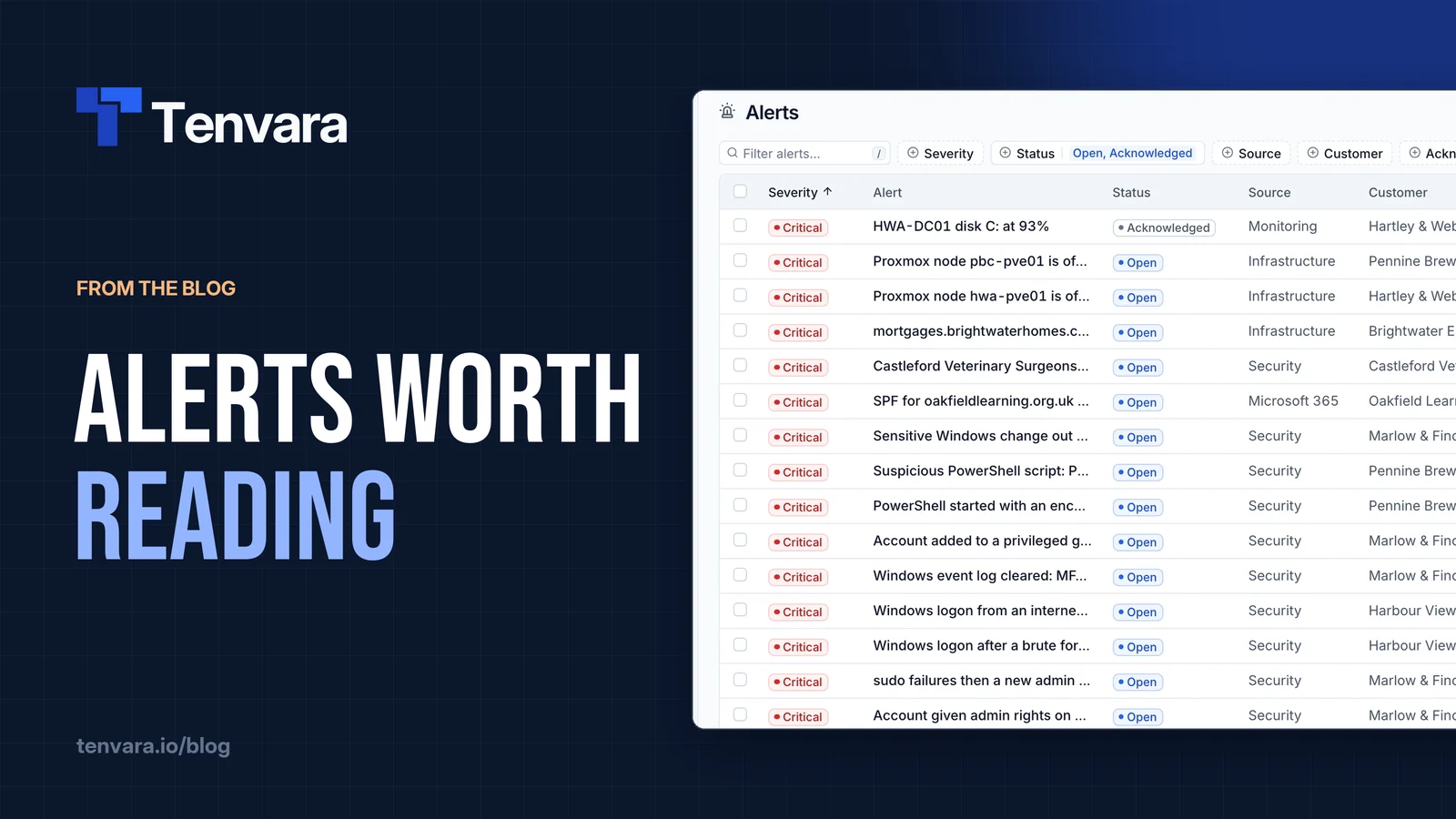
Alerts that become tickets on their own
If someone reads an alert, decides it matters and types it into a ticket, that's a job a rule can do. Decide which sources and severities deserve a ticket, which queue they land in, at what priority, and who gets them. Everything else stays in the alert list for someone to glance at.
Two small touches save a lot of noise: add a repeat of the same problem to the ticket that's already open, and close the ticket when the alert clears and nobody has spoken to the customer. We wrote more about this in alert fatigue.
Self-healing for the obvious ones
Some alerts have one answer. A disk is nearly full, so you run the clean-up. A service has stopped, so you start it. If a tech would do the same thing every time, let the check trigger the script, then note what happened on the ticket.
The human still sees it. They just see "disk clean-up already ran, here is the output" instead of starting from scratch.
Scheduled jobs
A lot of recurring work is simply remembering. The weekly report to a customer. The monthly check ticket for each client. The Monday morning maintenance script on the server group. Scheduling these takes them off someone's memory and puts them on a calendar that doesn't take holidays.
Ticket rules
The service desk is full of small decisions made the same way every time:
- Categorise from the subject: anything mentioning "invoice" goes to the accounts queue, anything with "printer" gets the printing type.
- Set priority from who sent it: tickets from a key customer, or from the managing director's address, start one level higher.
- Assign new portal tickets to whoever has the fewest open, during the working day.
- Reopen a resolved ticket when the customer replies, and tell the assignee.
- Canned replies for the answers you type every day: password reset steps, "we've received your request", "can you send a screenshot".
None of these is clever. Together they remove dozens of small clicks a day and make the desk more consistent.
Starters, leavers and new devices
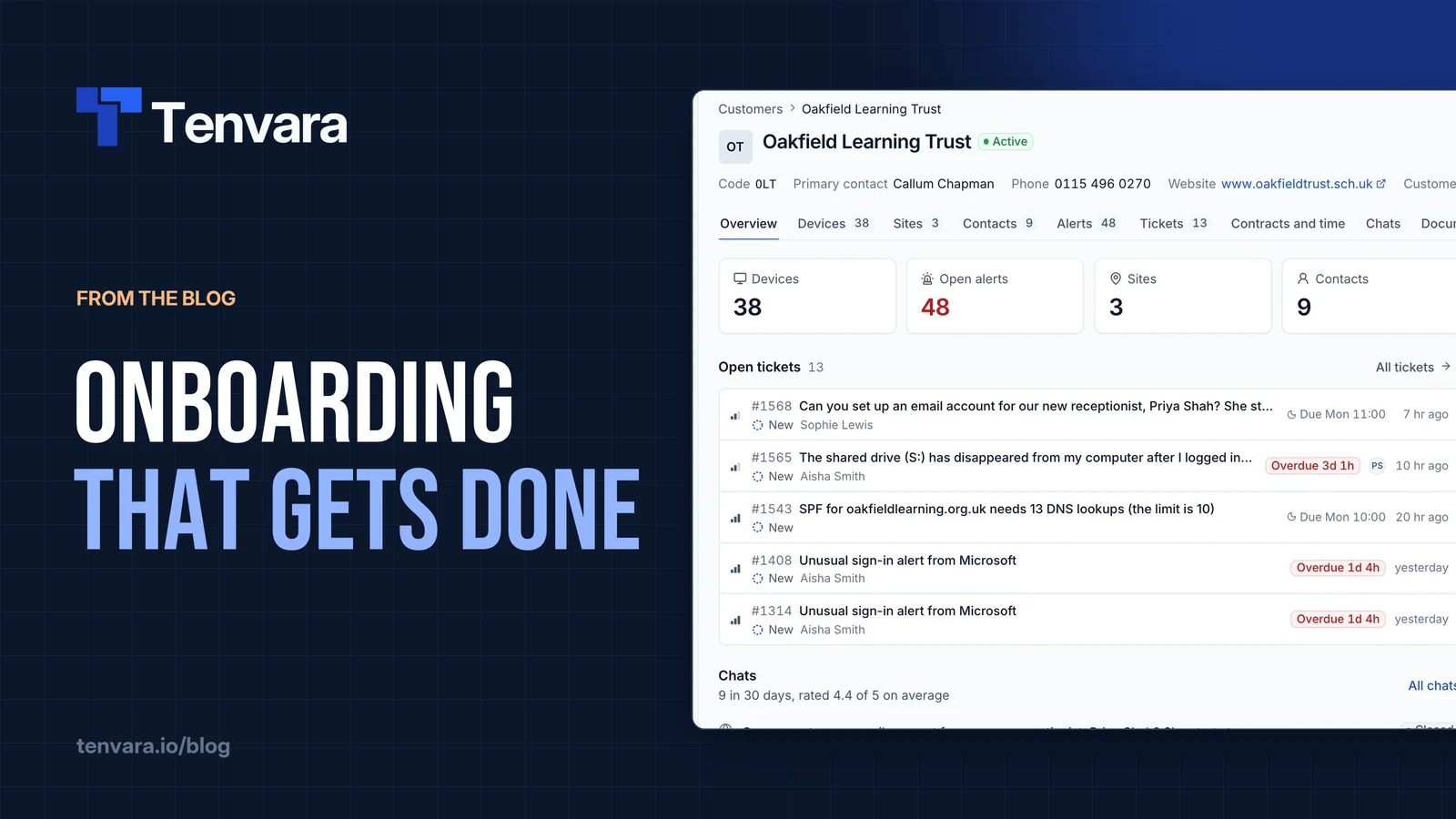
Onboarding and offboarding are the classic checklist jobs that go wrong when done by hand. A leaver needs signing out, blocking, their mailbox kept, their licences freed, in the right order. A new laptop needs to land in the right group and get the standard apps. Make these a fixed set of steps that runs the same way every time, and the "we forgot to remove their licence" conversation goes away. The client onboarding checklist covers the customer-level version.
How to choose what to automate first
Don't start with what's interesting. Start with what's frequent.
For a couple of weeks, keep a tally of jobs you do by hand that follow the same steps each time. Then do the arithmetic. As an illustration: a fix that takes ten minutes, done six times a week, is an hour a week. Over a year that's around fifty hours, more than a working week, from one small script. A job that takes an hour but happens twice a year can wait.
Then keep it safe:
- Start with one. Build it, watch it, trust it, then do the next.
- Log what it did. Every automated action should leave a record: what triggered it, what it ran, what happened. If you can't answer "why did this ticket close itself?", you'll switch it off.
- Keep a human in the loop for risky steps. Clearing a print queue can run unattended. Emailing customers, deleting accounts or touching every device at once should be watched, or approved, until you're sure.
- Try it before it acts. Run a new rule in a mode where it only records what it would have done, and check a few days of results.
How we handle it in Tenvara
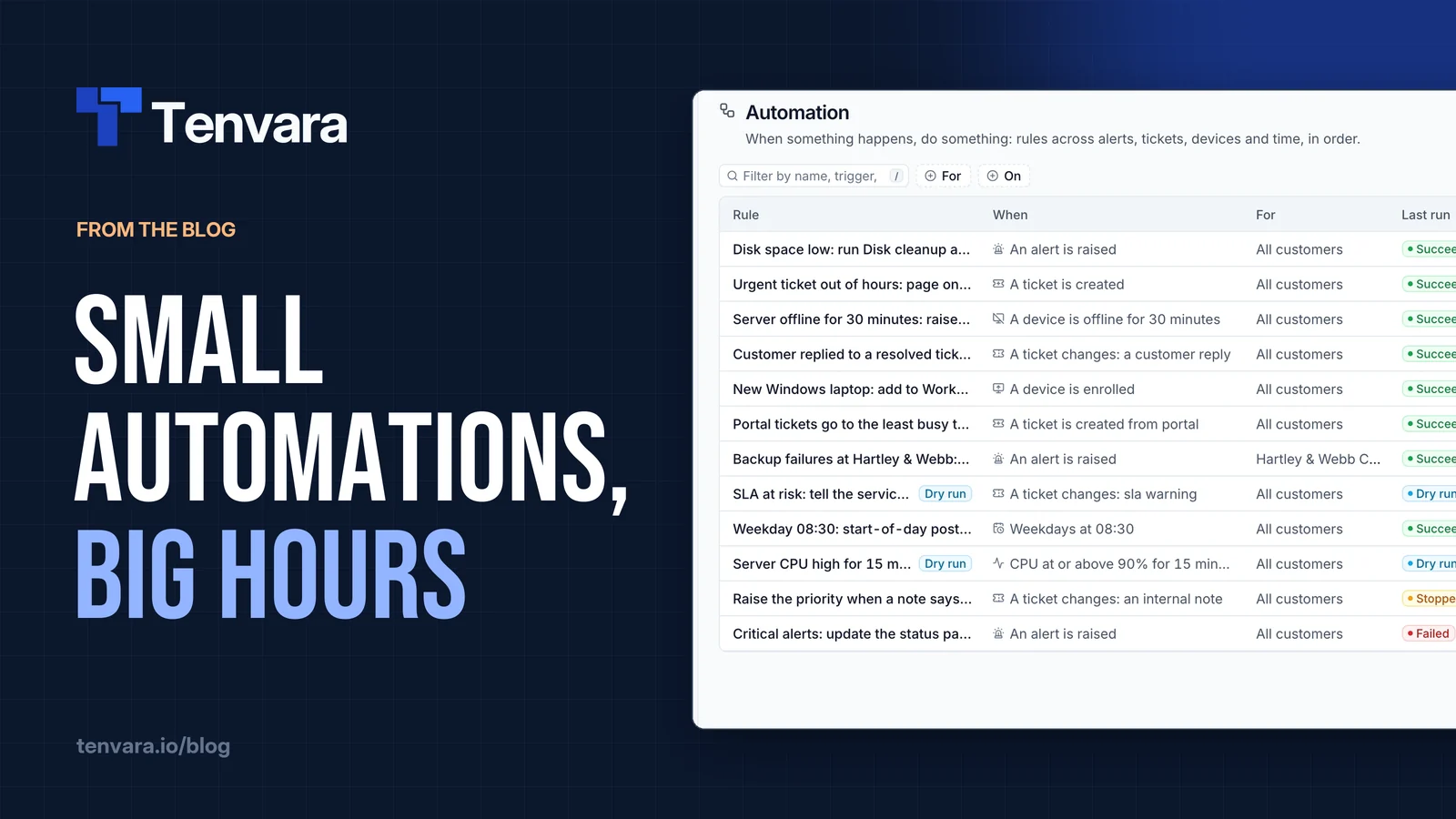
Automation in Tenvara is a set of rules: when something happens (an alert, a ticket change, a device going offline or enrolling, a metric crossing a value, or a schedule), for these customers, if these conditions hold, then do these actions in order. Actions include creating, updating and assigning tickets, adding notes, replying to the customer, running a script, deploying software, adding a device to a group, notifying people on Teams, Slack, email or text, paging whoever is on call, and sending a signed webhook. The guide to all of it is Actions.
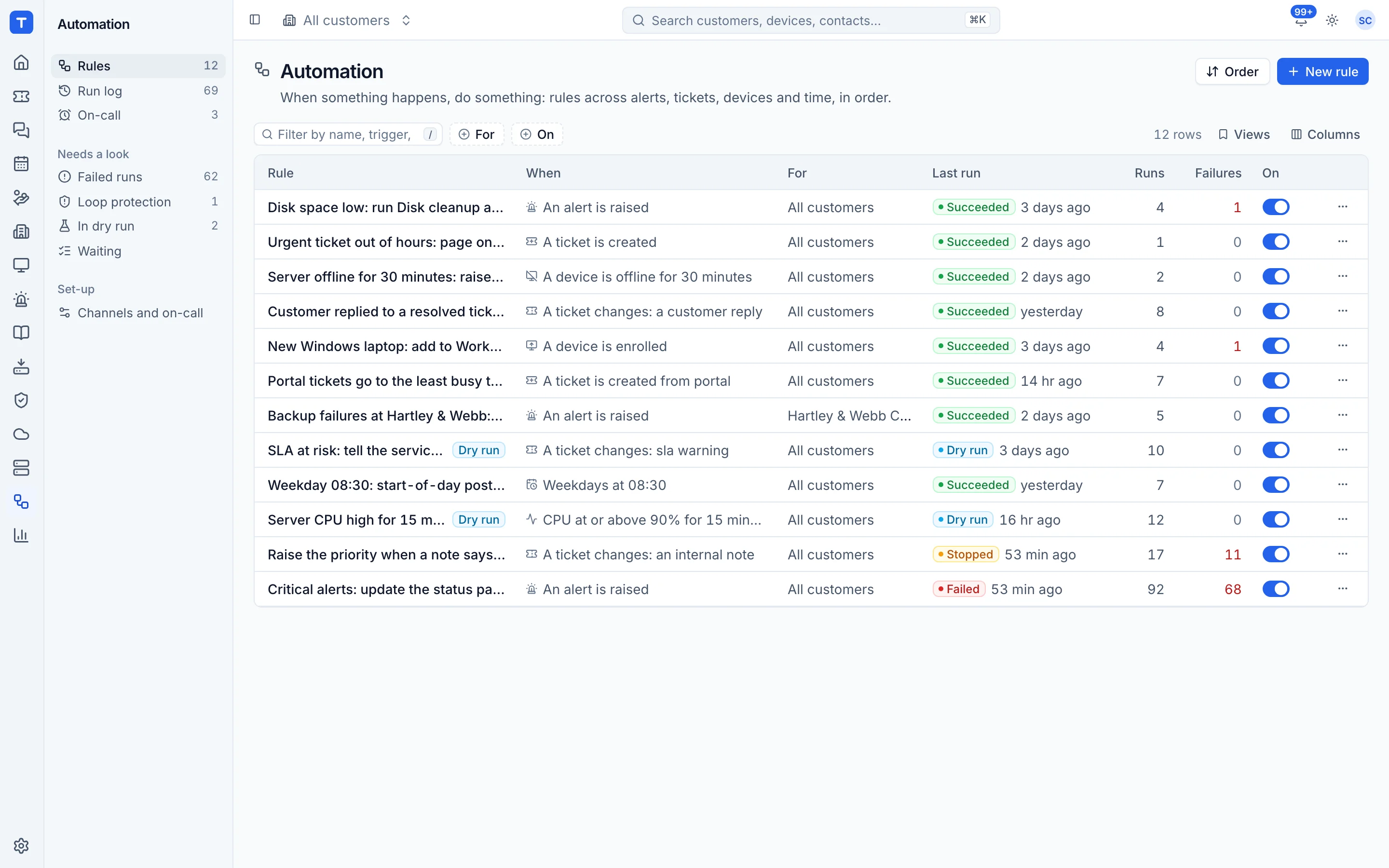
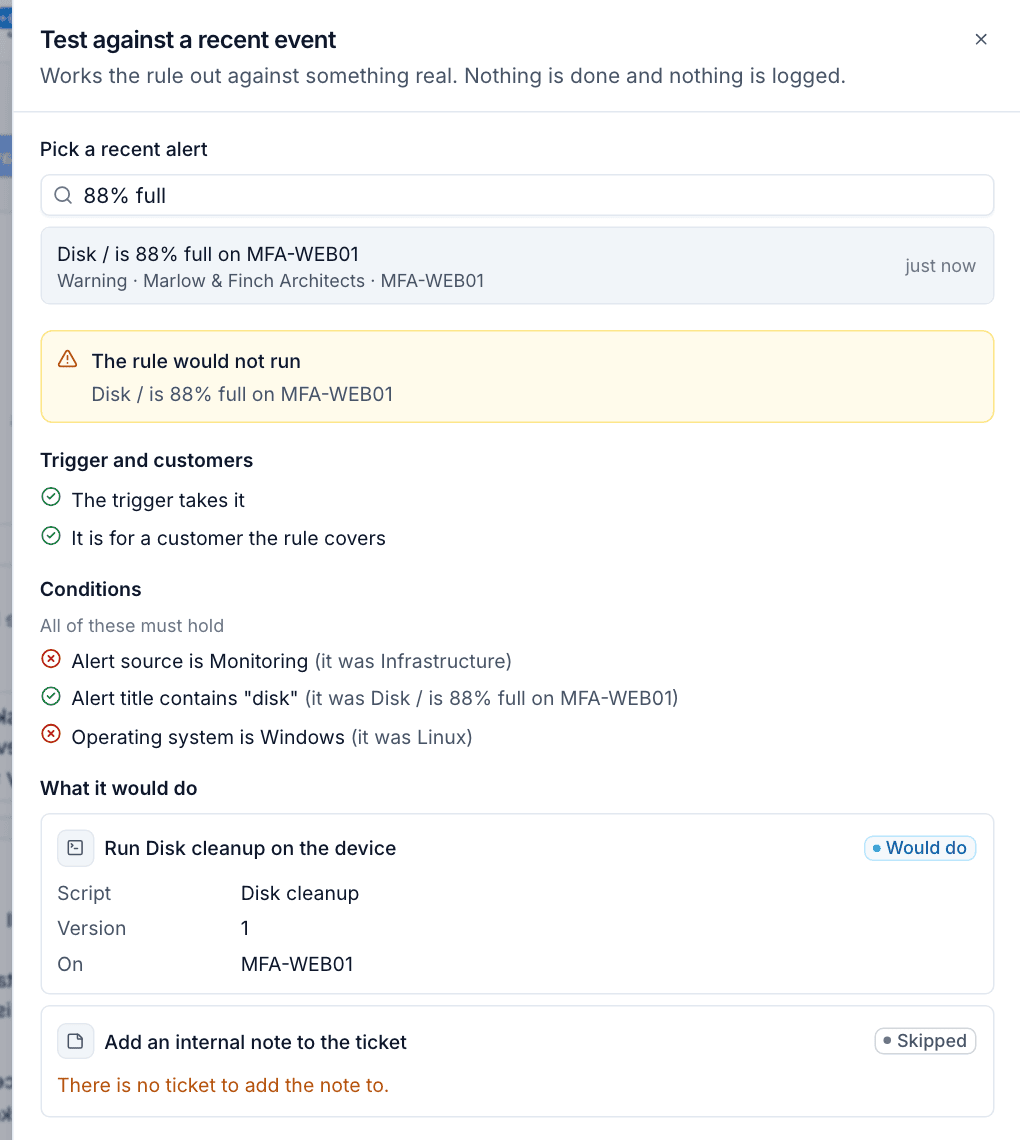
New rules can start from templates such as "Disk space low: run Disk cleanup and note the ticket" and "Customer replied to a resolved ticket: reopen and notify the assignee". Template rules start in dry run, so they log what they would have done with real values and change nothing. Test works a rule out against a recent real event and shows each condition with the value it saw. Every run is in the run log, with each action's result, the version of the rule that ran, and retry for failures. Loop protection stops rules setting each other off in circles.
The fixes themselves live in the script library, which comes with built-in scripts for jobs like restarting a service, flushing DNS and disk clean-up, alongside your own in PowerShell, Bash, Python and more. Scripts can run on a device, a group, a customer or everywhere, and be scheduled daily, weekly or monthly. Alert rules decide which alerts open tickets, where they go and whether the ticket resolves when the alert clears. Canned responses fill in the customer's details, saved reports can be emailed on a schedule, and Microsoft 365 starters and leavers run as a list of steps you can schedule and undo. More on the automation page.
Pick one this week
You don't need a strategy document. Find the job someone did by hand three times last week, automate it, and watch the run log for a few days. Then pick the next one. If you'd like to try it on your own jobs, Tenvara is launching soon. Get early access to apply for the beta or get launch updates.