Remote access is the tool that makes an MSP possible. One click and you're on a user's desktop. It's also the tool that would do the most damage in the wrong hands, because the same click works on every machine you look after.
Attackers know this. Going after an MSP's remote tooling is attractive for the simple reason that one foothold can reach dozens of customers at once. So remote access deserves more thought than "it works, the techs like it". Here's what we think good looks like, whatever tool you use.
Decide who gets asked, and when
The person sitting at the machine should never be surprised by a cursor moving on its own. For attended sessions on workstations, the user should at least be told who has connected, and for some customers they should approve every session before it starts.
Unattended access has its place: servers, kiosks, machines you're patching at 2am. The trick is to make it a decision rather than the default. If a laptop can be taken over silently at any time, ask whether it really needs to be. And if a server should never be remoted into at all, the remote module shouldn't be running on it.
Log every session, and actually read the log
Every session should leave a record: who connected, to which device, for which customer, when, for how long, and whether it was control or view only. Failed and declined attempts matter as much as successful ones. A string of failures against one server at an odd hour is the kind of thing you want to spot early.
A log nobody reads is only useful after the damage is done. Put a short review in the diary, weekly or monthly depending on your size. Filter by person and by customer and look for anything that doesn't match a ticket. Some customers will also want recordings for particular systems, so check what your contracts promise.
Least privilege for your own team
Not everyone in your business needs to be able to remote in. The apprentice on the phones, the account manager, the person who does the invoicing: they may need to see devices, not control them. Work out who genuinely needs remote access, give it to them, and leave everyone else at view or nothing.
Review it whenever someone's role changes, and treat leavers as urgent. Disabling a departing tech's account on their last afternoon is one of the most important security jobs an MSP owner does, and it's the one most likely to be forgotten in the rush of handovers.
Protect the accounts that can connect
Your technicians' accounts are, in effect, keys to every customer you have. They need multi-factor authentication, no exceptions, and ideally single sign-on through an identity provider you already manage properly. Passwords should be long and unique, and a password change should sign that account out everywhere else.
Keep a break-glass route in case your identity provider has a bad day, but make it an administrator account with its own strong password and two-factor, stored somewhere that doesn't depend on the thing that's broken.
Get credentials out of notes
Remote access and stored credentials go hand in hand. You connect to a server, and then you need the local admin password. If that password lives in a ticket note, a shared spreadsheet or someone's desktop text file, anyone who can read those can use it, and nobody will ever know they did.
Keep customer logins in a proper vault: encrypted, with access controlled by role and every reveal logged. Then when someone leaves, you know exactly which passwords they've seen and need changing. We went into this in more detail in documentation that stays current.
Keep sessions short and tell the customer
Sessions shouldn't stay open indefinitely. Connect, do the job, disconnect. A forgotten session is an open door.
Finally, be open with customers about how you access their machines. Tell them which setting you use for their devices, that every session is logged, and that they can ask to see the log. Customers who understand what you do are far more likely to ring you when something looks off.
How we handle it in Tenvara
Remote control in Tenvara runs through the same agent as everything else, so there's no separate remote tool to install, patch and secure. The picture, keyboard, mouse and clipboard go directly between your browser and the device, peer to peer, falling back to a relay only when a direct route isn't possible. Your Tenvara server carries only the set-up messages and never sees the screen. A session lasts at most 12 hours. Each session starts as either full control or View only, and a view-only session can't be stepped up to control.
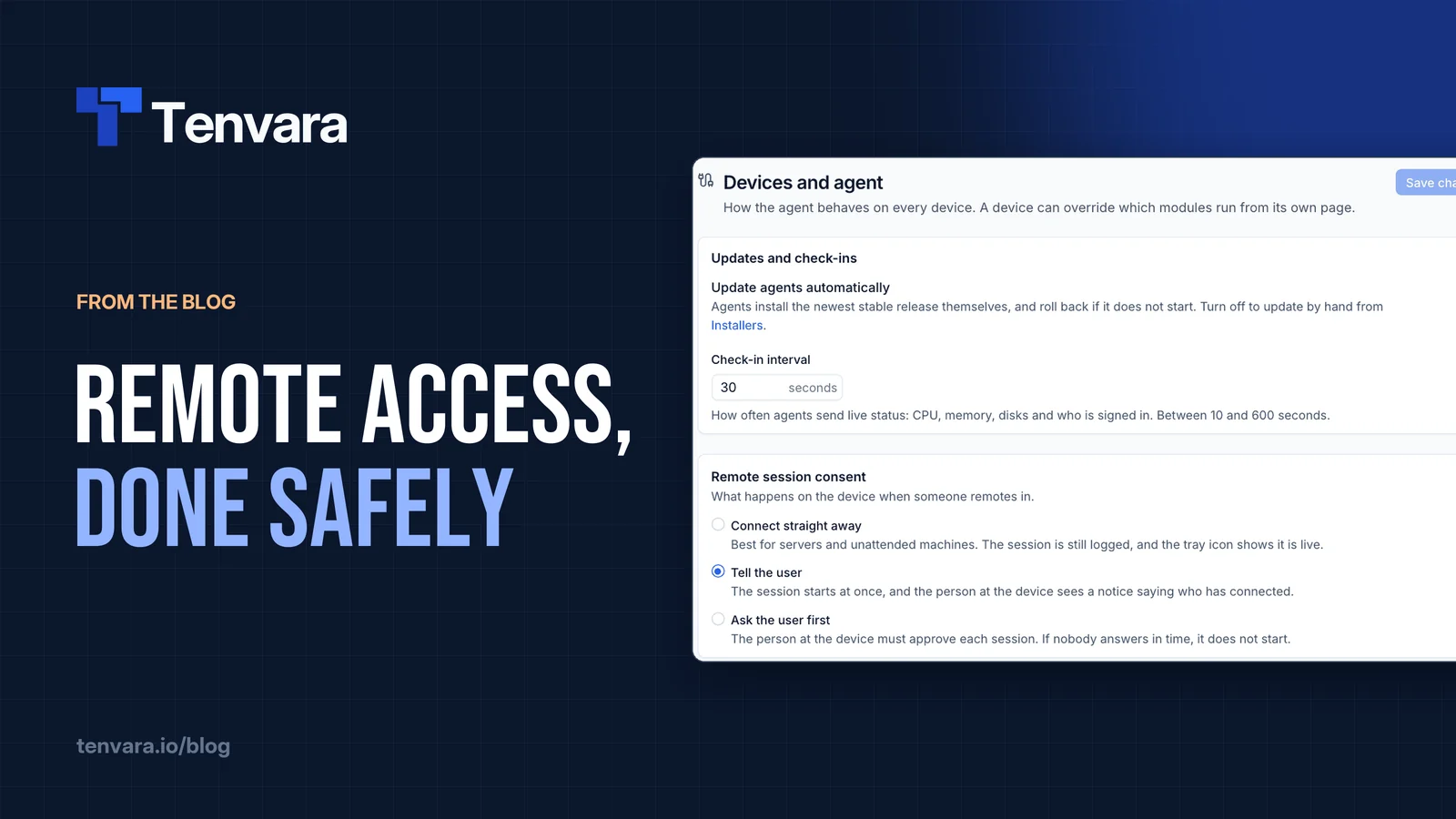
Consent. Under Settings > Devices and agent > Remote session consent you choose what happens on the device when someone remotes in. Connect straight away is meant for servers and unattended machines, and the session is still logged with the tray icon showing it's live. Tell the user (the default) starts at once and shows the person a notice saying who has connected. Ask the user first needs them to approve each session, and if nobody answers within about 30 seconds the session doesn't start and is logged as declined. Any device can also have its Remote control module switched off, which stops anyone remoting in to it. The details are in Remote control.
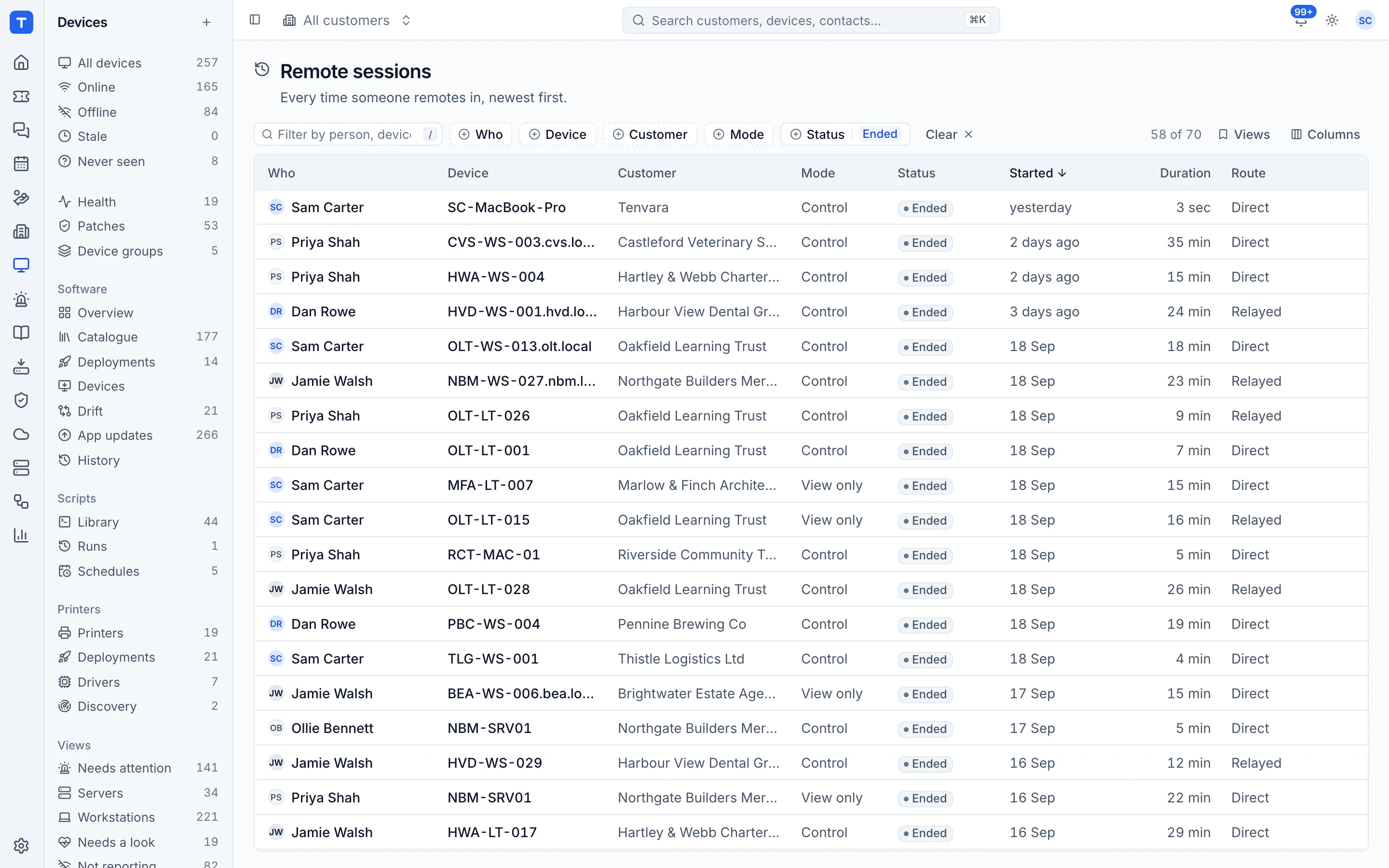
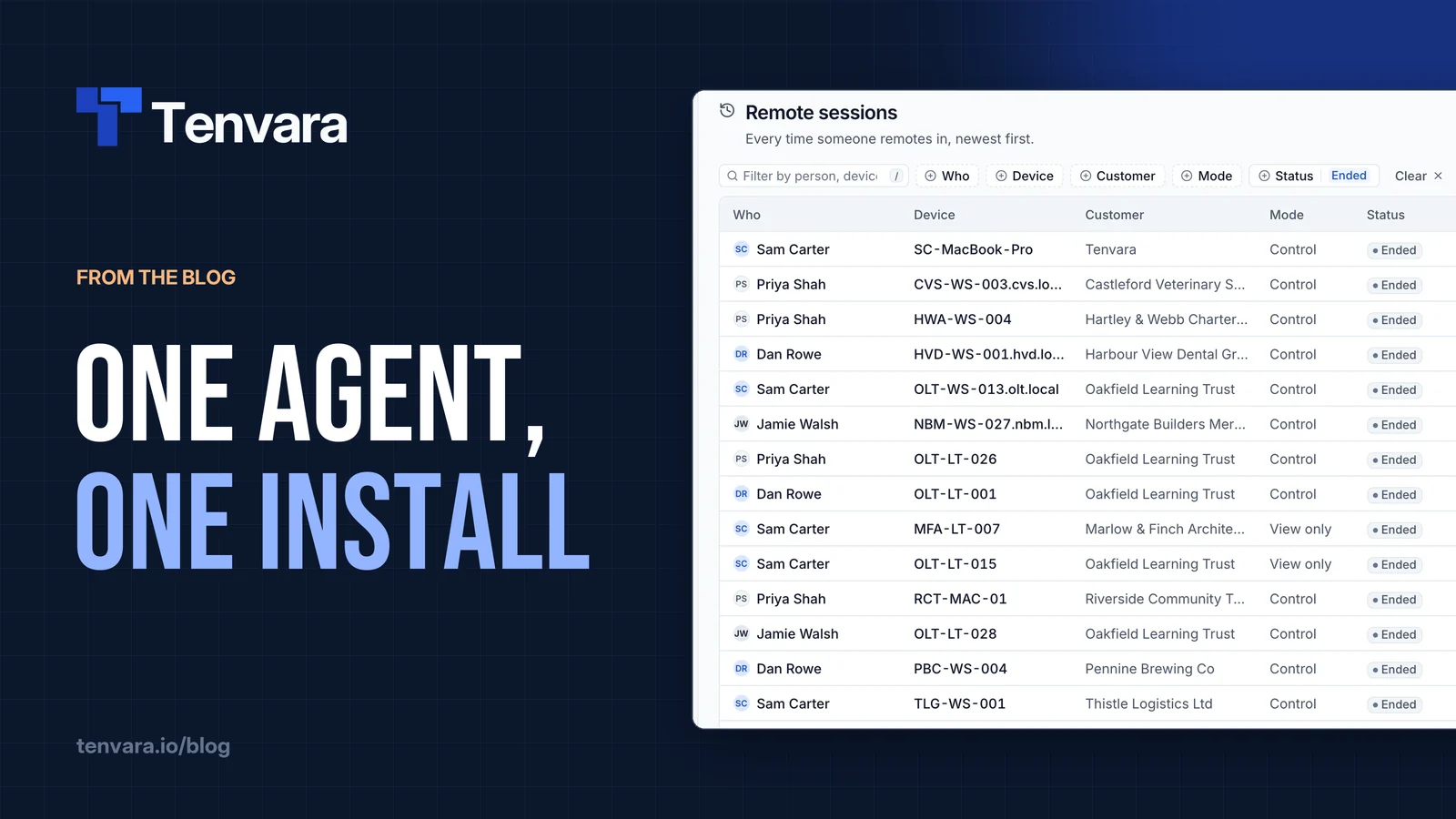
The session log. Devices > Remote sessions lists every session, newest first: who connected, the device and customer, the mode, whether it ended, failed or was declined, when it started, how long it lasted and whether it went direct or through the relay. You can filter by person, device, customer, mode or status, and every start and end also lands on the device's activity timeline. Remote sessions are part of Tenvara's own security activity in the Security area too, alongside sign-ins, failed sign-ins and credentials revealed.
Who can connect. Remote access is its own area in Roles and permissions, with None, View or Manage for each role and exceptions for one person. The server enforces it, so someone without the permission can't start a session whichever way they try. Deactivating a user signs them out everywhere and stops them signing in, while their history stays.
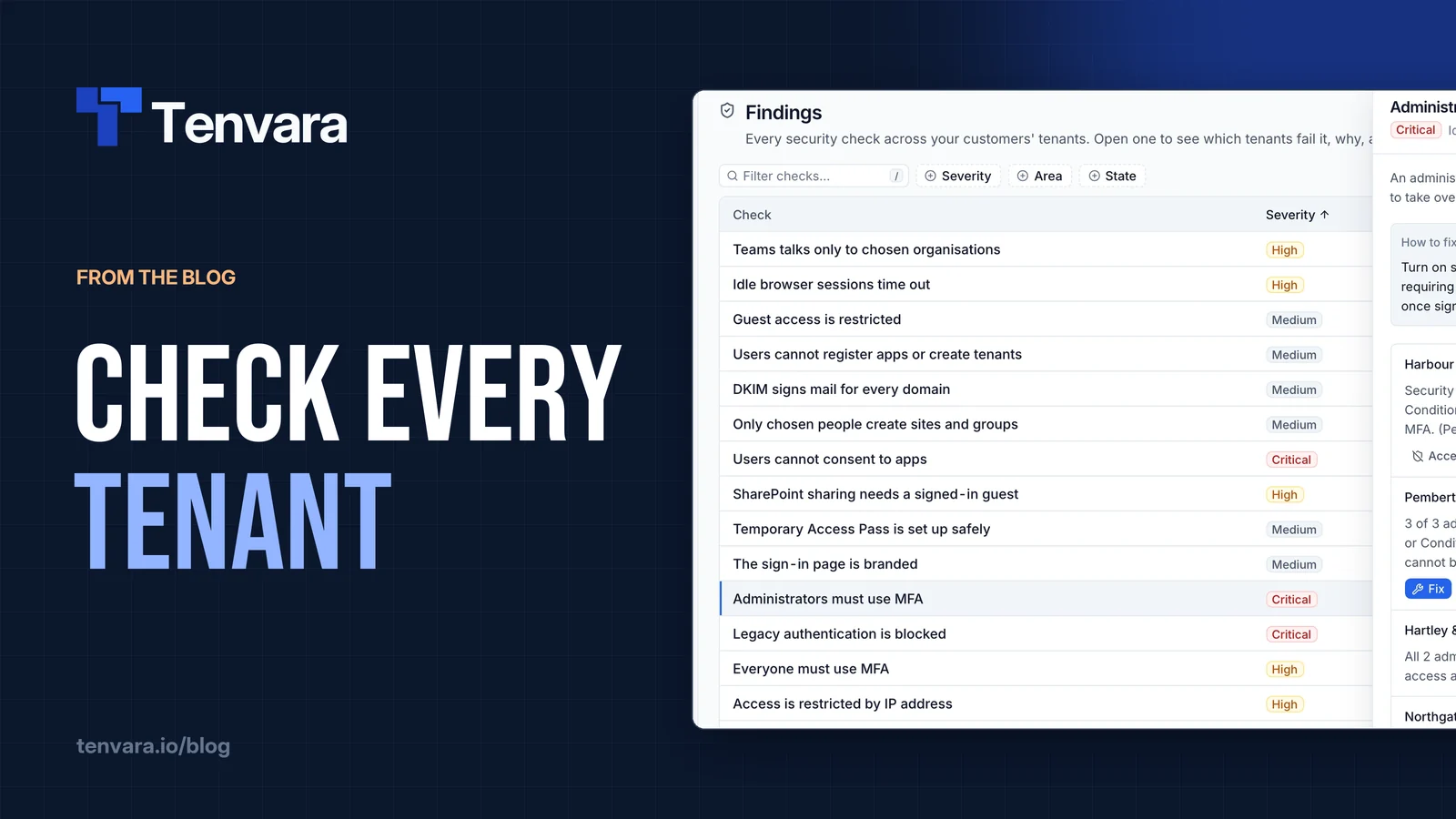
Sign-in. Settings > Sign-in can require two-factor for administrators or for everyone, and single sign-on works with Microsoft Entra ID, Google Workspace, OpenID Connect and SAML. Break-glass administrators always need two-factor. Sessions follow the settings, so tightening them ends sessions that no longer qualify. See Passwords and two-factor.
Credentials. The vault encrypts every secret individually, logs every reveal, copy and two-factor code with the person, field, address and browser, and can link logins to devices so they're there when you connect. Credentials is a separate permission from Documentation, so a tech can read the docs without seeing passwords.
You can see how remote control fits with the rest of the device tools on the RMM page.
The short version
Ask or tell the user, keep unattended access for machines that need it, log every session and read the log, give remote access only to the people who need it, put two-factor on every account that can connect, and keep passwords in a vault rather than in notes. None of it is complicated, it just has to happen every time. Tenvara is launching soon: if you'd like to try it on a test machine, get early access and apply for the beta.